Category: Linux

  • Freescout on SpinupWp

    Freescout on SpinupWp

    Update May 16th 2021: I’ve added a section about how to make sure SSL certificates are renewed automatically.

    In this tutorial I will go through the steps of setting up the open source helpdesk software Freescout on a SpinupWP site. I’m using this setup in production on a 2GB DigitalOcean droplet that is also hosting a bunch of WordPress sites and it’s running just fine, no performance issues to report.

    A 2GB droplet will set you back $10 USD per month. Combined with a $12 USD per month SpinupWP account you could be running a very competent support system with unlimited users starting at $22 USD per month with very little ongoing maintenance. If you’re already paying for these services chances are that the additional monthly cost for running Freescout will be zero.

    It’s quite likely that you will also want to get at few of the Freescout premium modules but note that they are pay once perpetual licenses so even if you end up spending $100 USD on those, your monthly fee won’t rise.

    I’ll be using a test domain that I have laying around called wundercogs.com and the resulting Freescout installation will get the address https://support.wundercogs.com, some of the config file edits and screenshots below will reflect that.

    For full disclosure. I’m not affiliated with Freescout or DigitalOcean but I do work for Delicious Brains, the makers of SpinupWP. None of the links in this post is an affiliate link.

    Step 1 – prerequisites

    Before we get started there are a few things we need to get sorted.

    We’re going to use a terminal shell to log on to the server using ssh. For security reasons SpinupWP only allows ssh logins using SSH keys (as opposed to using a password). If you’re not comfortable starting and using a command line shell this tutorial isn’t for you.

    We need to have a domain name. In this guide I’ll be showing some screenshots from hover.com and their DNS editor. But most DNS editors work more or less the same and you should be able to figure out out to make the same changes on your preferred domain name provider.

    Next we need to have an account with DigitalOcean because we’re using them to host our Freescout site. If you prefer to use another cloud server provider that’s fine, SpinupWP has plenty of documentation on how to provision servers from other providers.

    We obviously also need a SpinupWP account because we’re going to use SpinupWP to do all the heavy lifting also known as server management.

    Once we have both the DigitalOcean and SpinupWP accounts set up we’ll be following the SpinupWP docs to provision our first server. Their documentation is more than adequate so I’ll trust you’ll do just fine following that.

    If you happen to already have a provisioned server in SpinupWP it’s OK to use that, Freescout is a fairly light weight application so it’s fine to host it toghether with other SpinupWP sites.

    Once the server is setup in SpinupWP you can navigate to the server dashboard to find the IP number, make a note of it because we need it in the next step.

    Step 2 – setting up a domain name

    We’re going to configure a domain name to point to our newly created server. This step is important to do first because if we get this part right we’ll be able to get an SSL certificate without any additional hassle.

    To do this we’ll jump over to the DNS editor of our domain name hosting provider. As I mentioned earlier I’m using hover.com for this and this is what the steps looks like with them:

    Click Add record to add a host name to the domain:

    Enter a host name. In this tutorial we want Freescout to be accessible on the address support.wundergcogs.com, so the host name we add is simply “support” and then we fill in the server IP address we got from step 1:

    We finish by clicking Add record and we are all set.

    Step 3 – Creating a site

    To create a site we need to go back to the SpinupWP console and navigate to the server dashboard. Once there we hit the aptly named +Add site button to launch the site creation wizard

    On the first step we’ll add our domain name and make sure the Enable HTTPS (SSL/TLS certificate) checkbox is checked and then click next

    We’ll be asked if we’re ready to point our domain name to the server and since we’ve already taken care of that we’ll just click next and then I’ve updated the DNS

    …and a few moments later we should get the confirmation:

    On the next screen we’ll be asked what to install, we’re going to say Don’t Install Any Files because we’ll add the Freescout stuff later:

    Freescout needs to have a MySQL database set up so we need to add this on the next screen. Because we selected not to install anything on the previous screen we need to manually select Create New:

    Please note that SpinupWP automatically generates a database password on this screen. Be sure to copy it because you will need this password later.

    On the next screen we set Linux user name for our application. This is the Linux user account that Freescout will use to write files etc and SpinupWP will suggest a name based on the domain name we selected earlier which we will just accept. SpinupWP also suggests that we use PHP 7.4 for this site which is a sensible choice since at the time of writing this, Freescout isn’t confirmed to work with PHP 8 (but that may change).

    But we do want to uncheck the Enable full page cache checkbox since full page caching isn’t going to be needed and could quite frankly be a bit annoying for Freescout:

    And that will take us to the last wizard step which is just to confirm that everything looks OK

    …and since it looks just fine we’ll scroll all the way down and hit Add Site

    SpinupWP will take a few minutes to set up the site and that’s that.

    Step 4 – Creating a sudo user

    For the next steps we need to create a sudo user in SpinupWP. This is the user we will use to login to the server and install Freescout.

    To do this, we go to the server dashboard and click Sudo users:

    Here we need to make up our own username, let’s go with freescout and make a note of the auto generated sudo password as we will need it later.

    Important. You need to Add SSH Key to the newly created user because SpinupWP will not allow you to login using just the password. GitHub has a great guide for finding out your computers existing SSH key or help you generate a new one if needed. Make sure to upload your SSH public key to SpinupWP before saving the new user.

    Step 5 – Installing Freescout

    Ok, time for some keyboard work. First we’ll log on to the server using our newly created sudo user from the command line shell on your desktop / laptop:

    ssh [email protected]

    Once we’re on the server, navigate to the site folder for our site:

    cd /sites/support.wundercogs.com/

    And grab a copy of Freescout. Note that we’re running this command as the user support which is is the Linux user we created in step 4. When we issue this command we will have to enter the sudo password that we also created in step 4 above.

    sudo -u support git clone https://github.com/freescout-helpdesk/freescout

    Setting up a cronjob

    Freescout runs a lot of internal jobs every minute and to make that work we need to set up a cronjob. We create a new files as root:

    sudo nano /etc/cron.d/support

    …and enter the following:

    * * * * * support	php /sites/support.wundercogs.com/freescout/artisan schedule:run >> /dev/null 2>&1

    Then type Ctrl+o to save and Ctrl+x to exit the editor.

    Fixing server location

    Next, since we’re installing custom software here the webserver configuration files that SpinupWP generated for us will need a little tweaking. We’ll edit the nginx config file for our site so that nginx goes looking for the Freescout files in the right place.

    sudo nano /etc/nginx/sites-available/support.wundercogs.com/support.wundercogs.com

    About 10-12 lines down there’s a line starting with root, we’re going to change that line so that it reads:

    root /sites/support.wundercogs.com/freescout/public/;

    Then type Ctrl+o to save and Ctrl+x to exit.

    Fixing static files

    Freescout does a little trickery to be able to serve inline images and attachments correctly and to make that work we need to add a few lines in another nginx config file:

    sudo nano /etc/nginx/sites-available/support.wundercogs.com/server/static-files.conf

    You will see a lot of blocks starting with a descriptive comment on one line and the the word location on the next. Each block separated with blank a line. We need to add a new block to handle attachments near the top of the file, before the block that handles images with the comment “Caches images….”:

    # Manually added for Freescout
    location ~* ^/storage/attachment/ {
            expires 1M;
            access_log off;
            try_files $uri $uri/ /index.php?$args;
    }
    
    # Caches images, icons, video, audio, HTC, etc.
    ...
    ...

    Then type Ctrl+o to save and Ctrl+x to exit.

    Making sure SSL certificate auto renews

    When SpinupWP first creates the site it also sets up an SSL certificate which is needed for HTTPS to work. SpinupWP also takes care of renewing the SSL certificate on a regular basis. When this happens, the update script creates a file on disk and then asks the Letsencrypt service to verify that that file exists.

    We’ve just modified the nginx config a bit so the place where nginx looks for file to server doesn’t match the place where the update script will put that file for Letsencrypt. We’ll fix this by creating a simple symlink:

    sudo -u support ln -s /sites/support.wundercogs.com/files/.well-known /sites/support.wundercogs.com/freescout/public/

    Install IMAP support

    In most cases Freescout will be setup to use the IMAP protocol to fetch incoming emails. For this we need the PHP imap module installed:

    sudo apt-get install -y php7.4-imap

    That should be all the editing we need to do via ssh, to make the changes active, we just reload nginx:

    sudo service nginx reload

    Step 6 – Run the web installer

    We’re going to take the easy route and do the rest of the installation using the Freescout web installer. The installer is located at https://support.wundercogs.com/install. Use your browser and navigate to the corresponding URL on your domain to get started:

    Requirements should be OK:

    Permissions should also be OK:

    Make sure to select Use HTTPS Protocol:

    On the database setup screen we enter the database credentials we generated in Step 4, we only need to fill in database name, username and password, the rest is pre-filled:

    Select language and time zone on the next page:

    …and as the last step we create the admin user:

    And as as through magic we should get a happy success message telling us that everything went fine:

    Note that we took care of setting uo the cron job in a previous step. We’re done.

    Step 7 – Login

    So now we have a fully working Freescout installation running on a DigitalOcean droplet. The rest of all setup needed is handled via the Freescout web interface and is well documented over at the Freescout GitHub pages, you probably want to get started with:

    Feedback?

    Was this tutorial helpful? Did you miss anything or have you spotted any errors? Let me know in the comments below.

  • Things to improve Ubuntu 16.04 on Dell XPS 13 (9630)

    Things to improve Ubuntu 16.04 on Dell XPS 13 (9630)

    Update 2017-04-30:

    Since my laptop became more or less impossible to use with the WD15 dock and multiple external monitors, I had to continue looking for a solution. First I spent the better part of Saturday to try to create a Windows To Go installation on a USB stick in order to run the WD15 firmware upgrade (that only works on Windows). After several failed attempts I looked elsewhere for a solution. Turns out that for any 16.04 LTS installation, kernel upgrades are held back, so while a fresh install of 16.04.2 from CD would give you a Linux 4.8 kernel, systems like mine that had 16.04 from start, would still have a 4.4 kernel, the reason is that pretty much the only reason for upgrading the kernel these days is to get better hardware support  System that works fine with 4.4 will not get any benefits from an upgrade. But my system wasn’t working fine and the releases between 4.4 and 4.8, there has been a lot of Dell specific improvements and a bunch of usb-c improvements that could potentially make things better.

    First, make sure you have all relevant upgrades so that your current system is in fact a 16.04.2.

    erik@erik-xps ~ $ cat /etc/lsb-release
     DISTRIB_ID=Ubuntu
     DISTRIB_RELEASE=16.04
     DISTRIB_CODENAME=xenial
     DISTRIB_DESCRIPTION="Ubuntu 16.04.2 LTS"

    If your system still is 16.04.1, run the software updater manually and install everything it suggests.

    When you have all available upgrades, check that your kernel is in fact held back with the following command:

    erik@erik-xps ~ $ uname -r
     4.4.0-75-generic

    If your kernel version is lower than 4.8 and you are experiencing hardware related issues (like my problems with the WD15), you may very well benefit from a kernel upgrade. The easiest way to do that is to enable something called the hardware enablement stack that instructs your system to install the latest kernels and X version. A warning might be in place, once enabled your system is basically going to get new kernels every time Ubuntu has a new point-release. So whenever 16.04.3 is released your kernel is most likely going to be upgraded again. Getting a new kernel every now and then might be too risky for some systems. Your mileage may vary. My reasoning is that since the XPS 13 9630 is still very new hardware (in Linux terms), new kernels will gradually make it better and better so I accept the small risk that some kernel along the line could potentially mess things up.

    To get the hardware enablement stack, I issued the following:

    erik@erik-xps ~ $ sudo apt install --install-recommends xserver-xorg-hwe-16.04

    A few minutes and a reboot later, my laptop was working better with the WD15 than it did before the devestating 4.4.0.75 upgrade that started this whole mess.

    The downside right now seem to be that I get no sound at all from the WD15 now. Neither the audio jack at the front or back seem to be working. Hopefully something that can be resolved but compared to no support for external monitors, a minor issue.

    Power cycling the laptop AND the WD15 fixed the audio issue.


    Update 2017-04-28:

    After getting automatically upgraded to the latest Kernel (4.4.0.75) this week I had a proper sh*t storm of issues with my external monitors for two days. Sometimes they wouldn’t switch on after a cold boot. Sometimes I see the Ubuntu login screen on the external monitors for a second or two before they switch off. Sometimes the external keyboard and mouse wouldn’t work after boot.  Even the screensaver would start messing with the external monitors and keyboard, everything was basically random but with a strong bias towards not working at all.

    I gradually tracked it down to being an issue with the WD15 dock and its usb-c connection. Some searching around led me to this thread on the Dell Community forums that made me realize I’m running an outdated BIOS, I had version 1.0.7 but the current version is 1.2.3 . I downloaded and updated the the new bios and after 1-2 hours of running, a lot of dock/usb-c related issues seems to be fixed. I recommend every user to use an updated BIOS, but if you’re using an usb-c dock with your Dell XPS, I’d say this BIOS update is mandatory.

    New update: I spoke too soon, most of the issues remain the same.

    New daily driver

    This week my new daily driver arrived. A brand new Kaby Lake Dell XPS 13 Developers Edition (late 2016) that comes with Ubuntu pre-installed. It’s the first time in good number of years that I’m working with latest gen hardware and it’s also the first time I try a laptop with manufacturer support for Ubuntu. Interesting indeed. I also purchased a Dell WD15 dock to hook it up to my 2 22″ screens in the home office.

    Apart from a few “paper cuts”, I just love this laptop. It’s the first time ever that I own a laptop with more than 6 hours of (realistic) battery life out of the box. The screen is gorgeous and the backlit keyboard feels really comfortable. If you’re looking for a high end laptop to run Linux, I highly recommend this one.

    But as I said above, there are a few annoying things that needs to be improved. This blog post is my way of documenting the changes I’ve made so far and it’s very likely that I keep expanding this post as I discover and hopefully fix issues.

    Touchpad

    This laptop comes with a really nice trackpad. But when the computer first boots, it will have two separate trackpad drivers active. This makes synclient (the software that controls trackpad configuration) all confused and attach to the wrong driver. The trackpad will mostly work, but it’s not going to be possible to disable the trackpad while typing. This in turn means that if you enable “tap to click” on the trackpad, you will accidentally move the cursor around by “tapping” the trackpad with the palm of your hand driving you insane very quickly.

    The solution is a two step process:

    Install touchpad-indicator

    touchpad-indicator is a utiility that sits in the upper right hand indicator area in Unity. This util gives you some additional configuration settings for the touchpad, “disable touchpad on typing” being the important one for me.

    Touchpad indicator

    Touchpad indiator UI

    To install it:

    $ sudo add-apt-repository ppa:atareao/atareao
    $ sudo apt-get update
    $ sudo apt-get install touchpad-indicator

    After installing it, I had to start it manually once, and then tell it to autostart on it’s General Options tab.

    $ /opt/extras.ubuntu.com/touchpad-indicator/bin/touchpad-indicatDisable the unneeded touchpad driver

    Before touchpad-indicator can work, I also needed to disable the unnedded touchpad driver, the third answer in this thread explains how it’s done: https://ubuntuforums.org/showthread.php?t=2316240

    Edit: Another thing that might improve the touchpad is to enable PalmDetect, I haven’t played around with it enough to know if it matters or not, but I have to add a line int a X11 config file to enable it:

    $ sudo nano /usr/share/X11/xorg.conf.d/50-synaptics.conf

    And then after line 13 i added ‘Option “PalmDetect” “1”‘

    edit 50-synaptics.conf


    WD15 Dock

    There’s a lot to say about the Dell WD15 dock. For the most part, it works as expected but there are some annoying buts that goes with it. From researching online I realized that with the Linux kernel that comes with stock Ubuntu 16.04 a lot just works and for that I’m thankful. The poor customers that tried to make this dock work with previous versions of Ubuntu have suffered much more than I have. There are a few things that doesn’t work though.

    Audio

    The WD15 has a 3.5 mm loudspeaker jack on the back that doesn’t work and an similar 3.5 mm headphone jack on the front that does. Not a huge deal for me, I still get decent quality sound to my external speakers, but the installation could have been prettier:WD15 dock

    The other annoying thing with the dock is that I have a ton of trouble making it understand when to enable the external monitors, when to wake up from suspend and what resolution to use. I’ve had similar issues with other docks (HP) in the past. I don’t have a solution for it, I guess I just slowly adjust to a lot of rebooting and manual screen resolution management.

    The super key

    One of the most odd things with this laptop is that the pre-installed Ubuntu 16.04 comes with a Dell specific package named dell-super-key. This package seem to do just one single thing: disable the super key. If you’re the least bit familiar with Ubuntu, you know that the super key used a lot so exactly what the product developers at Dell was thinking is a mystery to me. Why?

    Anyway, it’s easy to fix. Just uninstall the dell-super-key package and you’re good to go.

    $ sudo apt-get remove dell-super-key

    Conflicting keyboard mapping

    I’m not sure if this is specific to the Dell installation of Ubuntu or not but I haven’t had this issue on any other laptops, including my last HP that was also running 16.04. I work a lot with different works paces and I use Ctrl+Alt+Up/Down to move between them. On this one, there was a conflict in mapping so that the Ctrl+Alt+Up combo was also mapped to “Maximize horizontally”. Whenever I had focus on a window that could be maximized, Ctrl+Alt+Up would maximize that window instead of taking me to the work space I wanted.

    Searching around in the standard places for where to fix this turned up nothing. I disabled the maximize action in every place I could think of; System Settings -> Keyboard -> Shortcuts as well as using the dconf-editor. Turned out to be the Compiz plugin “Grid” that caused the problem. I solved it by simply disabling these keyboard mappings from Grid.

    First, install the Compiz settings tool:

    $ sudo apt-get install compizconfig-settings-manager

    When install, launch it and search for the Grid plugin:

    Compiz Config Settings Grid

    Then in the Grid settings, click to disable and then re-enable the Grid plugin, it will detect the keyboard mapping conflicts and ask you how to resolve them. I told Grid to not set any of the keyboard shortcuts that conflicted with the “Desktop wall” plugin. That way I can keep some of the Grid features I like, such as maximizing a window by dragging it to the top of the screen:

    Resolving conflicts in compiz settings


    Conclusion

    Compared to 10 yeas ago when I first started using Linux as my primary OS, the tweaks needed to make this laptop work as I want it are minimal. Linux and Ubuntu have come a long long way since then and it’s world of difference.

    It would be easy to point a a finger at Dell for shipping a laptop with these issues, but I think that would be very unfair, instead I applaud them for sticking to their Developer Edition program. Sure, the super key thing is weird and perhaps they could have solved the touchpad thing better, but those are solvable. I prefer Dell to keep assembling great hardware, after all, there’s a great community of Linux users around to get the last few issues resolved.

    If you have any questions or if you’ve found another Ubuntu and Dell XPS related issue, please use the comment field below.


  • How to play Star Stable on Linux

    How to play Star Stable on Linux

    TLDR; Star Stable works fine under Wine 1.7.55. Use Play On Linux if you want to avoid too much Wine configuration details.

    UPDATE 2015-12-27

    I’ve recently reinstalled this on a fresh Ubuntu Gnome 15.10 64bit. In order to make Starstable work, I had to install two additional packages from the command prompt:

    $ sudo apt-get install winbind
    $ sudo apt-get install libldap-2.4-2:i386

    If you follow the guide below and get weird error messages in the Play-on-Linux debug log, try the two commands above and give it another try.

    Games on Ubuntu Linux

    And now for something completely different. A few weeks ago I was helping my daughter (12 years old) with some problems on her Windows 8 laptop. Over the 18 months she had it, she had been installing all kinds of crap software. Clicking whatever links and buttons she thought would get her games working the fastest possible way, hardly realizing that she gradually filled her Windows installation with numerous of Trojans, viruses and other malware. We were at a point where I realized that getting her computer clean again would consume more time than to do a complete Windows reinstall, only to risk that we’d be back in the same situation a few months later. So instead we went for Ubuntu Linux.

    Her first reaction after getting familiar with the new desktop environment (Gnome 3), she reported back that Minecraft had never run as smoothly on her laptop before. And the overall impression was that the entire laptop was a lot quicker than it was running Windows 8.

    Everytime she asked for help installing something, I was a little scared that we’d find out that the particular game she was interested in would not run under Linux, but so far we’ve been lucky. Minecraft just works as is and Garrys Mod and Terraria was easy enough to set up in the Steam environment. But today, she really wanted to get Star stable working and that turned out to be a little bit more challenging even though the final solution was pretty straight forward.

    Star stable under Wine

    Star stables own web page claims that the game only runs under Windows and Mac. But I hoped that it could potentially work using Wine. Lately, I’ve found that the Play on Linux project is an excellent way to manage Wine. It’s a nice graphical tool that allows you to manage several Wine environments in parallel.

    Step 1: Install Play On Linux

    Go to the Play On Linux home page and download the version for your Linux distribution. As we were running Ubuntu 15.10, we selected the appropriate Ubuntu deb package.

    Step 2:  Install WINE

    During the installation of Play on Linux, it’s quite possible that it will complain about not finding Wine on your computer. If so, install it using the Package manager on your computer (in our case, the Ubuntu Software Center)

    Step 3: Add support for Wine 1.7.55

    Once installed, we’re going to open Play On Linux and add support for the latest version of Wine:

    Manage Wine versions
    Manage Wine versions (click to enlarge)

    And add the latest Wine version, at the time of writing this 1.7.55 by high lighting it and clicking the right arrow button:

    Select the latest stable version (not "staging")
    Select the latest stable version (not “staging”)

    After clicking the right arrow button, a Wizard will start that guides you through the install process.

    Step 4: Download Star Stable Installation program

    Open a browser and got to the Star stable register page to initiate a download of the Star Stable executable. This step requires having or creating a Star Stable account. I’ll leave out the details and just assume you have an account.

    Logging in to Star stable
    Logging in to Star stable

    Once logged in, you’ll get access to the download link. Since you’re doing this from a Linux computer, the page will tell you that Star Stable is only available for Windows and Mac. So click the Windows link to continue. Most likely, you browser will ask you to open a link with an external program, but just ignore that:

    Ignore the request to lauch external application
    Ignore the request to lauch external application.

    ..then, you should be taken to a page that offers manual download of the Installation program StarStableSetup_v921.exe.

    Manual download
    Manual download


    Step 5: Install Star Stable

    Now. Go back to the Play On Linux main window and select install a program:

    Install a program
    Install a program


    On the next screen, click Install a non listed program:

    Install a non listed program
    Install a non listed program

    On the next screen, select to create a new virtual drive:

    New virtual drive
    New virtual drive

    And name the drive:

    Name the virtual drive
    Name the virtual drive

    …on the next screen, check all the boxes, we want to make some changes:

    Configure installation type
    Configure installation type

    …after a few seconds, you get to select the Wine version, select the latest that we enabled in step 3:

    Select latest version
    Select latest version

    ..and on the next screen, select 64-bit version:

    Select 64-bit version
    Select 64-bit version

    ..After a few moments, you’ll get a dialog box where you can edit some Wine settings. We want to select to emulate Windows 7, finish by clicking OK

    Select Windows 7
    Select Windows 7

    ..after another few moments, you’ll get a dialog box with options of packages to install before moving on. To be 100% honest, I’m not sure we need to add support for Direct X, but I did for my daughter so I’ll do the same here. Add support for Direct X, look for a package named POL_install_dxfullsetup, mark it and hit next:

    Install Direct X support
    Install Direct X support

    After downloading some files and installing Direct X, the wizard will finally ask you what file to use for installation:

    Select installation exe
    Select installation exe

    Find the file you downloaded in step 4, most likely in a folder named Downloads:

    Downloads folder
    Downloads folder

    and then click Next. After a few seconds, you should see the Windows installer for Star Stable open:

    Star Stable installer
    Star Stable installer

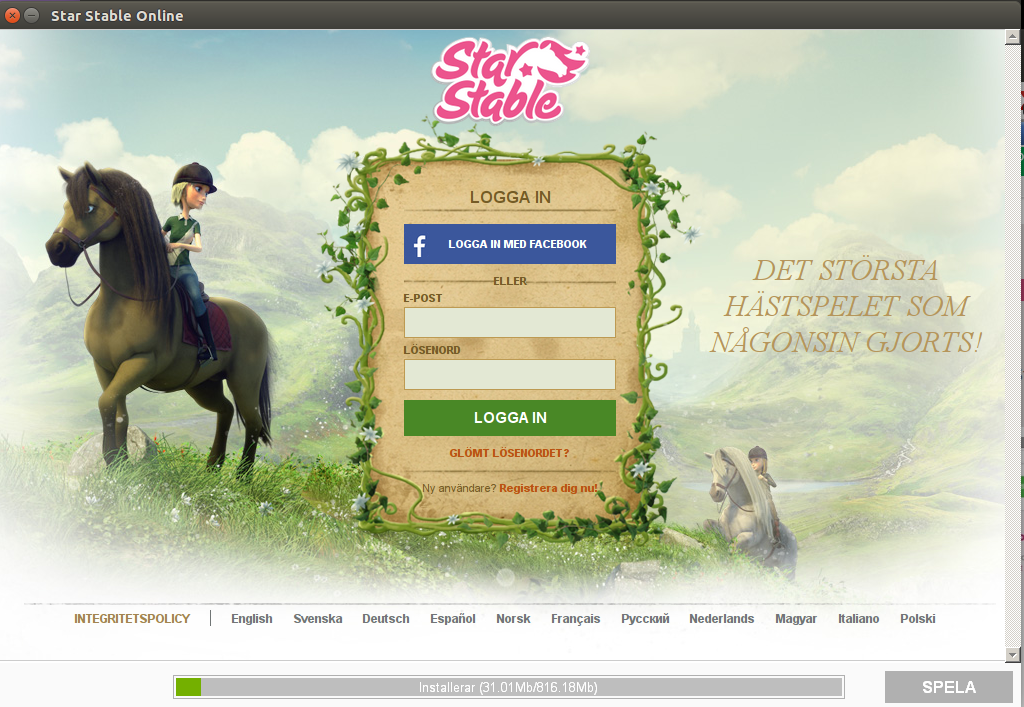
    ..after clicking Next, you will see the Star Stable installer window open. It’s a login form and at the bottom of the screen, you’ll see a progress bar showing a ~800 Mb download:

    Star Stable install screen
    Star Stable install screen (localized version)

    This part will take some time depending on your Internet connection speed. But rest assure, If you’ve gotten this far you’ll most likely have a working installation. Once the progress bar reaches 100% the first time, there will be a couple of updates to download as well, so grab a coffee (or Wine) and relax a few moments before the game launches.

    Step 6: Create a launcher

    One final step. As the Star Stable game started, Play On Linux will be sitting forever to wait for the install process to finish. But it won’t. Instead. Hit Cancel in the Play On Linux installation Wizard and return to the Play On Linux main window. As you can see, there will be no link to the Star Stable game, so we need to add one. Click the Configure icon in the top row:

    No link to Star Stable
    No link to Star Stable

    On the dialog that opens, mark the Starstable virtual drive and click the “Make new shortcut…” button:

    Create a shortcut
    Create a shortcut

    Then find the executable (pink icon) named StarStableOnlineLauncher.exe and click Next and on the next screen, just accept the default name given for the launcher.

    Create laucher step 2
    Create laucher step 2

    …then click Cancel to exit the Wizard and then close the configuration dialog to return to the Play On Linux main screen. You should now have a shortcut for the game. To start the game from now on. Just start the Play On Linux program, select the StarStable launcher and click the Play button on the top row:

    Start Star Stable
    Start Star Stable


    And that’s it folks! Go enjoy Star Stable on you Linux machine. Comments? Questions? Other feedback? Don’t hesitate to leave a comment below.


  • Creating a persistent ssh tunnel in Ubuntu

    In situations when no VPN is either not available or you just think it’s an overkill to configure an ssh tunnel can be a pretty good alternative. An SSH tunnel works by setting up an ssh connetion between two hosts and use that connection to transport normal network traffic. On one side of the tunnel, the OpenSSH software takes anything that is sent to a specific port and sends it over to the other side of the connection. When the packets arrive on the target side, the OpenSSH software forwards them to the correct local port. Natrually the traffic is encrypted on it’s way, thereby creating a miniature VPN.

    Setting up an ssh tunnel is quite straigt forward, for example at the terminal:

    ssh -NL 8080:127.0.0.1:80 [email protected]

    Let’s break that down:

    • -N means that SSH should just create the connection and then do nothing.
    • -L means that the local side is the listening side. If you want it the other way around, use -R instead.
    • 8080:127.0.0.1:80 tells ssh that the listening side should listen on port 8080 of it’s localhost interface and the other side should forward it to port 80. So, on the machine that runs this command, anything sent to 127.0.0.1:8080 is forwarded to port 80 on the other side
    • [email protected] tells ssh to connect to 192.168.10.10 with username root

    There’s really only one problem with this. Whenever the ssh connection breaks the tunnel will break and you have to rerun that command again. Depending on your situation this might be a problem and that’s why autossh exists.

    Autossh

    Autossh is a tool that sets up a tunnel and then checks on it every 10 seconds. If the tunnel stopped working autossh will simply restart it again. So instead of running the command above you could run:

    autossh -NL 8080:127.0.0.1:80 [email protected]

    Note: starting an ssh tunnel with autossh assumes that you have set up public key authentication between the client and server since there’s no way for autossh to ask you for the password. Especially if you want to follow the rest of this article and have the tunnels start automatically. Please read more here  for details on how to setup public key authentication.

    Start automatically

    Having autossh monitor your tunnels is a great advantage, but it still requires a command to be run whenever autossh itself would die, such as after a reboot. If you want your ssh tunnels to persist over a reboot you would need to create a startup script. Since Ubuntu 9.10 (Karmic) Ubuntu have used Upstart as its main mechanism to handle startup scripts so the rest of this article will discuss how such a script can be created.

    I wanted to achieve three things with my startup script. First, I’d like my tunnel to come up when the computer boots. Second, I’d like to be able to keep configuration for multiple tunnels in one file. And lastly, I’d like to be able to control (start/stop) my tunnels without having to kill individual ssh processes.
    Three files are created:

    First, /etc/init/autossh.conf:

    description "autossh tunnel"
    author "Erik Torsner "
    
    start on (local-filesystems and net-device-up IFACE=eth1 and net-device-up IFACE=wlan1)
    stop on runlevel [016]
    
    pre-start script
    NUMHOSTS=$(egrep -v '^[[:space:]]*$' /etc/autossh.hosts | wc -l)
    for i in `seq 1 $NUMHOSTS`
    do
    start autossh_host N=$i
    done
    end script

    Second, /etc/init/autossh_host.conf

    stop on stopping autossh
    
    respawn
    
    instance $N
    export HOST=$N
    
    script
    ARGS=$(head -$N /etc/autossh.hosts | tail -1)
    exec autossh $ARGS
    end script

    And lastly, the config file /etc/autossh.hosts

    -NL 8080:127.0.0.1:80 [email protected]
    -NL 8080:127.0.0.1:80 [email protected]

    Rationale for each file

    /etc/init/autossh.conf
    This is the main startup script. The first parts of the file sets the conditions that triggers this script to start or stop. I’ve told my script to start as soon as the local filesystem is ready and when mu network interfaces are up. Chances are that you want to modify this to suit your computer, at least the name of the network interfaces.
    The actual script part is a simple bash script that checks the contents of a config file to determine how many tunnels that needs to be started. It then starts a numer of autossh_host jobs with an individual id that happens to correspond a the line number. It would have been nice to just start the autossh processes directly from this script, but autossh is a blocking command and only the first line would be executed on startup. Dropping the process to the background using a & character at the end would work but the resulting autossh processes would be out of our controll.

    /etc/init/autossh_host.conf
    This is the job where the interesting part actually happens. Note that this script doesn’t have any “start on” stanza at all, it’s only ever started when the main job tells it to start. The interesting part is its “stop on” stanza that simply says that it should stop whenever the parent job is stopped. Using this mechanism all child jobs can be controlled via the parent job.

    The script part uses a very naive method of picking out the correct line from /etc/autossh.hosts and use that line as the argument for autossh. Note that with this approach, the config file /etc/autossh.hosts can’t contain any empty lines or comments at all. Room for improvement.

    /etc/autossh.hosts
    This is just a config file with one row per ssh tunnel to create. Each line consists of the entire parameter line sent to autossh. Again, please note that the parsing of this file is very naive and won’t allow for any blank lines or comments at all.
    Starting the tunnels
    If everything is correctly set up, you should now be able to start your tunnels using:

    sudo start autossh

    and stopping them with

    sudo stop autossh

    If you have problems, check out the logfiles under /var/log/upstart. There should be one logfile for each script/instance, so expect to find autossh.log as well as many autossh_host-N.log.

    Questions? Did I miss something? Is my solution entierly wrong? Let me know in the comments.

  • WordPress file permissions

    WordPress file permissions


    In order for WordPress to be able to install a plugin and plugins or themes automatically there are a number of conditions that have to be met. If all those conditions aren’t met, one-click installations or upgrades won’t happen, instead, whenever you try to upgrade, WordPress will show you the FTP credentials input form. If you’re anything like me, you hate it.

    I sometimes run into this problem. My first instinct is to check the obvious file permissions. Will the web server have write access to all the important places. As long as we’re only talking about plugins and themes, important places means the wp-content folder. When I’m certain that the web server have write access, I typically try again and successfully upgrade my plugin.

    Every once in a while, installing or upgrading still won’t work even if I’m 100% certain that WordPress should be able to write everywhere it needs to. I end up searching for a solution for about 10 minutes, give up and resort to manually uploading plugins via ssh and get on with my life. Today I decided to find out the root cause of this problem and solve it. Writing this blog post about it servers as much as a ‘note to self’ as assistance to anyone else that trouble shoots this without finding a solution.

    The rules

    So, the rules for WordPress to be able to install and upgrade plugins and themes:

    1. The web server needs to have write access to the wp-content folder. For example on a Debian based system (i.e Ubuntu), this will be user ‘www-data’, on RedHat/Fedora, it’s typically user ‘httpd’ (plese correct me here if I’m wrong). WordPress will test this by writing a temporary file to wp-content and then remove it. There are plenty of blog posts, howtos and forum posts about this. They usually points back to this article: http://codex.wordpress.org/Changing_File_Permissions
    2. The files in wp-admin needs to be owned by the web server user. WordPress will test this by using PHP function getmyuid() to check if the owner of the currently running PHP script is that same as the owner of the newly created temporary file. If it’s not the same, WordPress will select another method of installation or upgrade.

    Rule #2 is what typically gets me. Whenever I move an existing WordPress installation to a new home, I’m sometimes (obviously) not careful with setting file permissions and file ownership and end up in this situation. Rule #1 is extremely intuitive, checking for write permission is close to second nature. But Rule #2,  checking file ownership in wp-admin… well, I’d even say it’s slightly unintuitive. If anything is worth protecting it should be the admin area, and being more restrictive with file ownership and permissions under wp-admin would even kind of make sense.

    Anyway. Comments, questions or other feedback. Please post a comment below.


    [wysija_form id=”3″]


  • Gmail and Google Apps mail migration

    I’ve been a long time Google Apps user, I think it’s a perfect solution for a smaller company like mine. In fact, it’s a perfect solution for bigger companies as well. Right now, I’m working with a client that wants to consolidate 10 individual Google Apps domains into one single account that handles all the domains. About half of the 15 users have accounts in all the other domains, the other half have accounts in 2-3 of them. Even if this is not the most typical kind of work I’m doing, this assignment brings some welcome new challenges into my current work.

    Migration tool requirements

    Anyway. One of the client requirements is naturally that all existing email is migrated into the new Google Apps account. Easy peasy right? Well, it turns out that migrating email to and from Gmail (and therefore Google Apps) is quite a challenge due to a number of reasons. Of course, there are plenty of advice on the Internet, but none of the proposed solutions would cover all my needs which are:

    1. The tool must be able to handle XOAUTH on the source.
    2. The tool must be able to handle XOAUTH on the target.
    3. The tool must be able to handle Gmail’s rather special model of treating folders like labels.
    4. The tool must be scriptable
    5. The tool must be able to handle delta changes, running the script a second time should not create duplicates on the target email account.

    I’ve looked at plenty of alternatives but the only tools I found that could potentially do the work for me came at a too high cost. The cloud based tools that exist typically charge per user account, that would have been fine if there was a 1-1 mapping between users and accounts. But in my scenario, each user have on average 7 accounts and I had given my client a fixed price for the entire job. So, even if I had loved to try, I can’t afford to lose money on a job.

    The two most problematic requirements was to handle xoauth on both ends and to handle the gmail folder/label magic. The two official tools from Google, the migration API and the Google migration tool for Exchange failed. The API only gives you write access, so it’s not possible to get email OUT of a Gmail account using it. The Google Exchange Migration tool assumes that the source server is something other than Gmail and requires you to know the username / password for all source accounts.

    A solution… almost

    Enter imapsync. Imapsync used to be a free open source tool that is now under a commercial license. But for a mere EUR 50, I bought access to the source code (in perl). Imapsync is able to handle XOAUTH on both source and destination, it’s scriptable and it’s able to use MessageId to keep a kind of state. Running imapsync twice with the same parameters will not duplicate the amount of emails on the target server, more on that later.

    The one problem I had with imapsync was the folder vs label management. The problem that most people know of is that Gmail doesn’t really use folder, it uses labels. Even if it’s similar in a lot of cases, there are differences. What I learned is that there’s another issue regarding the concept of subfolders or nested labels. An example

    • Via IMAP, create a folder  named foo. => Gmail creates a root level label “foo”. 
    • Via IMAP, create a folder named foo/bar => Gmail creates the label “bar” nested under the label “foo”.
    • Via IMAP, create a folder named “fuu/bar” => Gmail create the root level label “fuu/bar”.

    See the difference? In the last example, you’d perhaps thought that Gmail would create a root level label “fuu” and then a nested label “bar” under it. But nope, Gmail will happily create a label containing the actual IMAP label separator character. Bummer. So the end result is that if you transfer email with imapsync out of the box, you will get a flat structure of really long label names. And that flat list that can grow to be quite long if your’re actively using nested labels. And you don’t want that.

    I was pondering a whole lot of various solutions to this problem. I actually got to the point where I tried to migrate the source account to a local IMAP account on my own machine, manipulate the Maildir directly on disk to insert dummy email in strategic places and then migrate to the target account. It worked, but it also introduced a whole new set of moving parts.

    The final solution (thanks Dennis)

    dennis_filter

    It took a long sunday walk with the dog before I realized that the proper solution would be to work with the imapsync source to fix folder creation. As I described above, the cause of the folder / label problem is that Gmail treats things differently depending on the order of folder creation. So, after the initial shock of seeing 5000 lines of Perl code (I don’t consider Perl to be part of my standard toolbox) I got to work and built me a patch. With the patch in place, the folder creation now works as I’d expected it in the first place. The one downside to this solution is that it won’t be able to see the difference between a label on the source Gmail account that actually contains a / (forward slash).

    The other thing I with this patch is that it don’t have a switch to tell imapsync if you want the different folder creation behavior or not. I guess that’s needed before I submit it back to the maintainer.

    Anyway, this patch assumes that you have imapsync 1.542 even if it’s likely to work well with other versions as well. If you have another version of imapsync and want to work with Gmail migrations, consider upgrading anyway since only 1.542 supports xoauth. On line 2312, replace the existing create_folders function with this modified version:

    sub create_folder {
    	my( $imap2, $h2_fold, $h1_fold ) = @_ ;
            my(@parts, $parent);
    
    	print "Creating folder [$h2_fold] on host2\n";
            if ( ( 'INBOX' eq uc( $h2_fold) )
             and ( $imap2->exists( $h2_fold ) ) ) {
                    print "Folder [$h2_fold] already exists\n" ;
                    return( 1 ) ;
            }
    
            @parts = split($h2_sep, $h2_fold );
            pop( @parts );
            $parent = join($h2_sep, @parts );
            $parent =~ s/^\s+|\s+$//g ;
            if(($parent ne "") and !$imap2->exists( $parent )) {
            	create_folder( $imap2 , $parent , $h1_fold);
            }
    
    	if ( ! $dry ){
    		if ( ! $imap2->create( $h2_fold ) ) {
    			print( "Couldn't create folder [$h2_fold] from [$h1_fold]: ",
    			$imap2->LastError(  ), "\n" );
    			$nb_errors++;
                            # success if folder exists ("already exists" error)
                            return( 1 ) if $imap2->exists( $h2_fold ) ;
                            # failure since create failed
    			return( 0 );
    		}else{
    			#create succeeded
    			return( 1 );
    		}
    	}else{
    		# dry mode, no folder so many imap will fail, assuming failure
    		return( 0 );
    	}
    }


  • Debugging PHP with Sublime Text 2

    In my early days of developing, I was heavily using Microsoft Visual Studio almost exclusively and say what you want about developing in the Microsoft ecosystem, but debugging Just Worked. In the Open source world of various iteration of LAMP stack, debugging is more of a challenge and honestly, just as many other developers working with PHP, I quite often just decide to live without step-by-step debugging.

    However, on my latest development machine, I did make the effort and put all the pieces together and as much as I want to share, this blog post mostly serves as a memory backup knowledge for myself.

    Part list

    A little bit about my environment:

    • My development machine is a laptop with Ubuntu 12.10 on it. Most of these instructions should work just fine on most other Linux distros as well.
    • I use Sublime Text 2 as my primary code editor. I like it a lot and I also selected it partly it can do debugging. (and yes, I did shell out the money for a license, suggest you do the same if you use it daily)
    • In Sublime Text 2, I’m using Kindaris Sublime Xdebug client
    • I have Apache2 installed on this development machine, but I have selected not to to enable Xdebug in apache2. Instead, I use PHP built in webserver (introduced in php 5.4) when I want to debug in the code.
    • I’m using Xdebug as the actual debugger.
    • To trigger debugging, I use the chrome extension Xdebug helper

    Getting started

    Here we go

    Installing Sublime Text 2

    (read more about Sublime Text 2)

    Depending on your precise environment, how and where you install Sublime Text may vary. On Ubuntu 12.10, the by far easiest way is to get it via the http://www.webupd8.org/ like this:

    $ sudo add-apt-repository ppa:webupd8team/sublime-text-2;
    $ sudo apt-get update;
    $ sudo apt-get install sublime-text

    INSTALLING XDEBUG

    Getting it onto the machine should be very straight forward:

    $ sudo apt-get install php5-xdebug

    So, but I had this minor itch that I wanted to scratch. Even if this is my development machine, I’d like to keep Xdebug out of the Apache2 installation, instead, I want to do my debugging via the built in PHP web server, to me that makes more sense.

    After Xdebug is installed, it also updates php5 configuration on the box so that it’s globally available, so regardless if you run php from Apache2 and from command line. This is achieved by a little symlink magic. The content of my /etc/php5/conf.d directory:

    lrwxrwxrwx 1 root root 25 Nov 13 11:36 10-pdo.ini -> ../mods-available/pdo.ini
    lrwxrwxrwx 1 root root 26 Dec 11 15:29 20-curl.ini -> ../mods-available/curl.ini
    lrwxrwxrwx 1 root root 24 Nov 19 02:25 20-gd.ini -> ../mods-available/gd.ini
    lrwxrwxrwx 1 root root 28 Nov 13 15:20 20-mysqli.ini -> ../mods-available/mysqli.ini
    lrwxrwxrwx 1 root root 27 Nov 13 15:20 20-mysql.ini -> ../mods-available/mysql.ini
    lrwxrwxrwx 1 root root 31 Nov 13 15:20 20-pdo_mysql.ini -> ../mods-available/pdo_mysql.ini
    lrwxrwxrwx 1 root root 28 Dec 26 17:46 20-xdebug.ini -> ../mods-available/xdebug.ini

    On my fairly new Debian based distribution, the correct way to remove Xdebug from the /etc/php5/conf.d folder is:

    $ sudo php5dismod xdebug

    But if you don’t have the php5enmod / php5dismod commands, you may just as well just delete the symlink using rm:

    $ rm /etc/php5/conf.d/xdebug.ini

    With Xdebug out of the global config, you want to add it to the config for cli. So in the file /etc/php5/cli/php.ini, you add at the very end:

    [xdebug]
    zend_extension=/usr/lib/php5/20100525/xdebug.so
    xdebug.remote_enable=On
    xdebug.remote_host="localhost"
    xdebug.remote_port=9001
    xdebug.remote_handler="dbgp"

    So, now Xdebug is available only when php is run via the command line and not via Apache2.

    Installing Sublime Text package control

    By far the easiest way to get various Sublime Text packages installed is to use the package manager Package Control. It’s a full-featured package manager that helps discovering, installing, updating and removing packages for Sublime Text 2. It features an automatic upgrader and supports GitHub, BitBucket and a full channel/repository system.

    Installation is extremely easy via the Sublime Text console. In Sublime, you either select View -> Show Console or via the shortcut Ctrl+’. In the console, paste the following command:

    import urllib2,os; pf='Package Control.sublime-package'; ipp=sublime.installed_packages_path(); os.makedirs(ipp) if not os.path.exists(ipp) else None; urllib2.install_opener(urllib2.build_opener(urllib2.ProxyHandler())); open(os.path.join(ipp,pf),'wb').write(urllib2.urlopen('http://sublime.wbond.net/'+pf.replace(' ','%20')).read()); print 'Please restart Sublime Text to finish installation'

    Once you restart Sublime Text 2, you should have ‘Package Control’ in the Preferences menu. Read more about installing and trouble shooting Package Control here.

    Installing Kindaris Sublime Xdebug

    Finally, almost the last piece of software to install. Kindari’s Sublime Xdebug client. In Sublime Text 2 go to the preference menu and select Package Control => Install package. You should see something like this:

    PackageControl_1

    Now, select Install Package and type xdebug. The search function should more or less immediately give you Xdebug – Xdebug Interface for Sublime… as an option. Just select it and let the installation begin. There. Done. Almost.

    INSTALLING Python 2.6 packages

    Xdebug Interface for Sublime depends on a package from Python 2.6, so to get it to work on your machine, chances are that you need to install Python 2.6. On later releases of Ubuntu, it’s not possible to install Python 2.6 via the repos. But there is a fairly easy way to get the package we miss:

    1. Download Python 2.6 from the Ubuntu archives
    2. Extract Python 2.6 under the Sublime Text lib folder
    3. Clean up

    Like so (if you’re on a 64 bit machine):

    $ wget http://security.ubuntu.com/ubuntu/pool/main/p/python2.6/python2.6_2.6.5-1ubuntu6.1_amd64.deb
    $ dpkg-deb -x python2.6_2.6.5-1ubuntu6.1_amd64.deb python2.6_2.6.5
    $ sudo cp -r python2.6_2.6.5/usr/lib/python2.6 /usr/lib/sublime-text-2/lib/
    $ rm -rf python2.6_2.6.5
    $ rm -rf python2.6_2.6.5-1ubuntu6.1_amd64.deb

    And like this if you’re on a 32 bit machine, it should work like this, however I never tried it:

    $ wget http://security.ubuntu.com/ubuntu/pool/main/p/python2.6/python2.6_2.6.5-1ubuntu6.1_i386.deb
    $ dpkg-deb -x python2.6_2.6.5-1ubuntu6.1_i386.deb python2.6_2.6.5
    $ sudo cp -r python2.6_2.6.5/usr/lib/python2.6 /usr/lib/sublime-text-2/lib/
    $ rm -rf python2.6_2.6.5
    $ rm -rf python2.6_2.6.5-1ubuntu6.1_i386.deb


    Last piece – Xdeubg Helper for Chrome

    With the above pieces in place, Xdebug is really good to go. However, to get Xdebug to work, you need a way to trigger it and the most common (or at least easiest) way to do it for web development is via Xdebug remote debugging. To trigger the debugger, get your web browser to send an additional parameter XDEBUG_SESSION with a value that matches a predefined string in your IDE. You can send the additional parameter as a GET    query parameter, but that will quicky get complicated and / or cumbersome depending on your URL structure. With the XDEBUG Helper extension for Chrome, you force Chrome to send that additional parameter in the background whenever you need it to.

    Go to the Chrome Web Store and search XDEBUG Helper in the Extensions section and then add it to chrome. Then go to the Options screen for the extension and add sublime.xdebug as the IDE key. Optionally, you may also want to white list your own machine in the Domain filter section. By doing that, the XDebug helper icon will only show up when you’re surfing on a page that you can actually debug on. Below is my options screen (click to enlarge):

    Screenshot from 2012-12-26 23:16:25

    Test time

    All the pieces are in place, let’s try to do a simple debug session.

    1. Create a script to debug

    <?php
    
    $foo = array('Abba' => 'Sweden', 'Beatles' => 'England', 'Beach Boys' => 'USA');
    
    foreach($foo as $k => $v)
    {
    echo "Band {$k} \t Country {$v}\n";
    }

    2. Launch a PHP webserver. In a terminal window, navigate to the folder where you saved the script above and type:

    $ php -S localhost:8000
    PHP 5.4.6-1ubuntu1.1 Development Server started at Wed Dec 26 23:44:16 2012
    Listening on http://localhost:8000
    Document root is /home/erik/src
    Press Ctrl-C to quit.

    3. In Sublime Text, set a breakpoint on a suitable line (note: can’t be a blank line) by putting the cursor on that line and hit Ctrl+F8, you should see a round marker in the left margin.

    4. In Sublime Text, enter debug mode by hitting Shift+F8 and select ‘Start Debugging’ from the menu that appears.

    5. In Chrome, surf to http://localhost:8000/test.php. Click on the gray ‘bug’ icon in the address field to make it grren. Then refresh the page again

    Xdebug-for-chrome

    6. Hey presto!!!! In Sublime, you should now see a small triangle on the first line with a break point that indicates that it’s the next line to be executed.

    Debugging_sublime

    You are now debugging your code inside Sublime Text 2.

    Shortcut keys

    • Shift+f8: Open XDebug quick panel
    • f8: Open XDebug control quick panel when debugger is connected
    • Ctrl+f8: Toggle breakpoint
    • Ctrl+Shift+f5: Run to next breakpoint
    • Ctrl+Shift+f6: Step over
    • Ctrl+Shift+f7: Step into
    • Ctrl+Shift+f8: Step out

    Trouble shooting

    I’ve only had one real problem setting this up on my machine. When I first tried this, the sublime xdebub panels ‘Context’ and ‘Stack’ would stay blank and the debugger refused to connect to the IDE. The problems turned out to be that I missed the Python 2.6 packages mention above. So make sure not to skip the section ‘Installing Python 2.6 packages’ above.

    To finish of, go to https://github.com/Kindari/SublimeXdebug to read more about the tool and then, enjoy.


    /E


  • Net ID on Ubuntu 12.10

    I don’t know if it’s because of my desktop environment (Ubuntu 12.10, Gnome Shell 3.6) is so darn special or because Firefox 17 disabled a certain feature. But anyway, when I tried installing Net ID from SecMaker, better known as Telia e-legitimation, it would just fail. But I was able to find a workaround.

    My symptoms: I followed the instructions from Telia / SecMaker and it semed OK. To finish the actual installation part, you’re supposed to browse to /etc/iid/pkcs11.html to let Firefox install Net ID as a local security device. However, that part simply doesn’t work. I got the message:


    Installation status for Net iD pkcs#11 module is unknown, use buttons below to install or uninstall the module.

    But the buttons Install / Uninstall didn’t actually do anything.

    1. The problem: The whole point of surfing to /etc/iid/pksc11.html is so that a javascript can install Net ID as security device. Turns out that Firefox 17 have disabled access to the internal Firefox object that can manipulate the list of security devices unless the code executes inside a proper Firefox extension. In this case, the code executes inside a normal webpage so it simply won’t work.

    The solution: It turns out that there’s another method to install Net ID as a security device and that  is to do it manually. This is how.

    1. Open Edit -> Preferences -> Advanced.

    2. Select the Encryption tab

    3. Click Security Devices. You should see something like the below (except that you won’t see “Net ID” in the tree view on the left hand side.Screenshot from 2012-12-18 10:08:57

    4. Click the Load button on the right hand side. Fill in the details. You want to name the module “Net ID” and give the path to the .so file to /usr/lib/libiid11p.so

    Screenshot from 2012-12-18 10:14:44

    5. Click OK. You should now see Net ID in the tree view on the left hand side and that’s our goal here, so, hooray!!!

    Now, you have added the Net ID software to your computer and made it available in Firefox, so you installation can continue as described in the instructions from Teliea (or whatever ID provider you have).

    Good luck!