Blog

  • Super simple backups

    Super simple backups

    In this post I explain a little bit about how I’ve set things up so that I’m comfortable knowing that my files are backed up to an Amazon S3 bucket every night. Most of this post should work exactly the same on any Linux or BSD system, but I’ve personally only used it on Mac.

    With this approach my backups are

    • Offsite – so that any amount of fire, earthquakes, floods or avalanches can’t take my data away.
    • Safe – I trust that the Amazon engineers are magnitudes better att maintaining their data centerns than I could ever maintain some local hardware
    • Secure – Again, I trust the Amazon engineers to have magnitudes better security practices than I ever will. Bad actors will find it more difficult to steal data from Amazon than from me.
    • Versioned, so I can go back to any older version of a specific file at any time. This protects me from a lot of my own stupid mistakes as well as the odd case of a ransomware attack.

    And since you’re going to want to know. I spend well under $1 / month for the 20Gb of backup storage I’m currently using. However the first month the storage bill as about $10, partly for the initial transfer but mostly because of a good deal of experimentation. Still bonkers cheap.

    Half the work is dotfiles

    Before you go ahead and copy this solution you should be aware that this backup approach only deals with content such as documents, source code, images, temporary files on the Desktop etc. It does not deal with installed software or settings.

    Besides the Amazon S3 backup described in this post I’m also using a combination of dotfiles and Bitwarden to backup software, settings and secrets. I’ll probably write something about that part of my setup later. All you need to know at this point is that the following solution solely focus on good old files.

    Also worth knowing is that this backup script deals only with files and folders under your $HOME folder. I keep my computer pretty tidy and make sure everything worth backing up sits somewhere in my $HOME. If you run things differently and want to backup other folders as well, you’ll probably find it easy enough to modify the script below.

    Requirements

    Not a lot of requirements at all, here we go:

    • Brew – to install the aws command line utility
    • An existing Amazon AWS account
    • An IAM user set up with a valid access key and secret

    I highly recommend creating a new IAM user just for this project. Even though it’s not covered in this tutorial it makes it possible to add restrictive access controls later on. Nothing worse that discovering too late that a lot of applications are sharing the same credentials.

    Creating the bucket

    First we need a bucket. Go to the Amazon S3 console and click Create a bucket. Most of the settings are straight forward.

    Select a suitable name, for instance the name of your laptop. Select a region, you probably want to select the closest region available to minimize network latency.

    Then there are a few key settings that you want to get correct from the start:

    • Make sure ‘Block all public access’ is enabled so that your files aren’t available from the Internet.
    • Enable Bucket versioning

    Installing aws command line

    Next we install the AWS cli tool using Brew:

    $ brew install awscli

    That’s easy. Next we need to set up the command line tool so it’s able to access our bucket. AWS Cli allows you to setup several profiles with different defaults. I highly recommend setting up a separate profile for the purpose of backups, I call mine ‘backups’:

    $ aws configure --profile backups
    AWS Access Key ID [None]: YOUR_AWS_ID
    AWS Secret Access Key [None]: SECRET_KEY
    Default region name [None]: us-west-2
    Default output format [None]: json

    If you’re already using Aws Cli for other things you can go a bit more advanced and edit the config files directly, Amazon has some great documentation about this here.

    It’s a good idea to test the settings with a simple command. Using the ‘ls’ command you should see the bucket you created earlier and if you’ve been using AWS previously, probably a few more:

    $ aws s3 ls --profile=backups
    2021-03-31 09:24:57 erik-laptop
    2021-02-15 00:16:17 some-other-bucket

    The backup script

    With a bucket and a configured command line tool in place it’s time to have a look at the actual script. I’ve created a folder named ~/src/backup and stored the below script as below is stored in ‘~/src/backup/backup-aws.sh’:

    !/usr/bin/env bash
     BUCKET="erik-laptop"
     FOLDERS="src Desktop Downloads Documents"
     PROFILE="backup"
    
     for FOLDER in $FOLDERS; do
         aws s3 sync $HOME/$FOLDER s3://$BUCKET/$FOLDER \
         --profile=$PROFILE
         --no-follow-symlinks \
         --exclude="/node_modules" \
         --exclude="/.vagrant" \
         --exclude="/vendor" \
         --exclude=".vdi" \     
         --exclude=".DS_Store" \
         --exclude="/project1/www" \
         --exclude="/project2/www" \
         --include="/project3/src/plugin_name/vendor"
     done

    Super simple right?

    The first three lines are just setting some config values:

    • BUCKET – the target AWS S3 bucket
    • PROFILE – the profile we defined when setting up the cli tool
    • FOLDERS – Any folder name under your $HOME that you want to include in the backup

    Further down the script You’ll notice that there are a lot of lines starting with ‘–exlude’. Each of these lines has a file pattern of files or entire folder to exclude from the backup. This list should be adapted to your own needs, here’s my reasoning for a few of these:

    • node_modules – When I need to restore this folder will/should be recreated by npm, no need to keep them in my backup
    • vendor – Same as above, but these folders will be recreated by Composer
    • .vagrant – This is a temporary folder created when using Vagrant. All my vagrant machines can be created and provisioned from scratch, no need to keep this state
    • .vdi – Disk images from VirtualBox. Same as with the .vagrant state folder, these are recreated on demand when I need them

    I’m also using an explicit ‘–include’ when needed. In one of my projects we have a folder named ‘vendor’ that actually can’t be recreated (as easily). So I’ve chosen to make sure ‘/project3/src/plugin_name/vendor‘ is included in backups as well.

    Depending on the type of projects and software you are working on or with, the list of files and folder to include or exclude may differ a bit so you may need to adjust the list. Amazon has good documentation on how to write exclude and include patterns here.

    Running the script

    I suggest running this script manually at least once. Make sure you are in the folder where you saved the script and type:

    # make it executable
    $ chmod +x backup-aws.sh
    
    #run it
    ./backup-aws.sh

    The first time will take an awful lot of time. My initial backup was about 6Gb (before adding more folders) and took a good 45 minutes on a fast Internet connection. Your milage will vary.

    When the initial backup is done you can try running it again to verify it’s working as intended. The second time around should be a lot faster, normally about 4-5 minutes on my laptop.

    Adding a cron job

    Once we’re satisfied that the backup script does what it should, it’s time to add a cron job for it. To edit your current users crontab using the Nano editor just type:

    $ EDITOR=nano crontab -e

    Add the following line to have this script run at 3:01AM every day

    1 3 * * *       cd /Users/myusername/src/backup && ./backup-aws.sh > /dev/null 2>&1

    How does this work?

    The magic sauce in this setup is the ‘aws s3 sync’ command. It will recursively copy new and updated files from the source directory on your computer to the destination which is an S3 bucket. It will figure out which files that have been created, updated or deleted since the last time it ran and transfer all those changes to S3.

    I think it’s fair to compare ‘aws s3 sync’ with rsync, but specifically designed to work with S3 buckets.

    Since the bucket we configured for this is versioned, previous versions of an updated or deleted file will still remain on the bucket. So what ever ransomware attacks you are subjected to you will always be able to retrieve an earlier version of the file.

    What am I missing?

    The whole reason I wrote this post is for you to criticize it.

    I’m the first to admit that I’m not terribly experienced when it comes to working with backups, but perhaps you are? I find this approach to backing up personal stuff so easy that there’s bound be some flaw somewhere in this setup that I didn’t understand or consider.

    If you spot the problem, don’t hesitate to comment below.

  • Freescout on SpinupWp

    Freescout on SpinupWp

    Update May 16th 2021: I’ve added a section about how to make sure SSL certificates are renewed automatically.

    In this tutorial I will go through the steps of setting up the open source helpdesk software Freescout on a SpinupWP site. I’m using this setup in production on a 2GB DigitalOcean droplet that is also hosting a bunch of WordPress sites and it’s running just fine, no performance issues to report.

    A 2GB droplet will set you back $10 USD per month. Combined with a $12 USD per month SpinupWP account you could be running a very competent support system with unlimited users starting at $22 USD per month with very little ongoing maintenance. If you’re already paying for these services chances are that the additional monthly cost for running Freescout will be zero.

    It’s quite likely that you will also want to get at few of the Freescout premium modules but note that they are pay once perpetual licenses so even if you end up spending $100 USD on those, your monthly fee won’t rise.

    I’ll be using a test domain that I have laying around called wundercogs.com and the resulting Freescout installation will get the address https://support.wundercogs.com, some of the config file edits and screenshots below will reflect that.

    For full disclosure. I’m not affiliated with Freescout or DigitalOcean but I do work for Delicious Brains, the makers of SpinupWP. None of the links in this post is an affiliate link.

    Step 1 – prerequisites

    Before we get started there are a few things we need to get sorted.

    We’re going to use a terminal shell to log on to the server using ssh. For security reasons SpinupWP only allows ssh logins using SSH keys (as opposed to using a password). If you’re not comfortable starting and using a command line shell this tutorial isn’t for you.

    We need to have a domain name. In this guide I’ll be showing some screenshots from hover.com and their DNS editor. But most DNS editors work more or less the same and you should be able to figure out out to make the same changes on your preferred domain name provider.

    Next we need to have an account with DigitalOcean because we’re using them to host our Freescout site. If you prefer to use another cloud server provider that’s fine, SpinupWP has plenty of documentation on how to provision servers from other providers.

    We obviously also need a SpinupWP account because we’re going to use SpinupWP to do all the heavy lifting also known as server management.

    Once we have both the DigitalOcean and SpinupWP accounts set up we’ll be following the SpinupWP docs to provision our first server. Their documentation is more than adequate so I’ll trust you’ll do just fine following that.

    If you happen to already have a provisioned server in SpinupWP it’s OK to use that, Freescout is a fairly light weight application so it’s fine to host it toghether with other SpinupWP sites.

    Once the server is setup in SpinupWP you can navigate to the server dashboard to find the IP number, make a note of it because we need it in the next step.

    Step 2 – setting up a domain name

    We’re going to configure a domain name to point to our newly created server. This step is important to do first because if we get this part right we’ll be able to get an SSL certificate without any additional hassle.

    To do this we’ll jump over to the DNS editor of our domain name hosting provider. As I mentioned earlier I’m using hover.com for this and this is what the steps looks like with them:

    Click Add record to add a host name to the domain:

    Enter a host name. In this tutorial we want Freescout to be accessible on the address support.wundergcogs.com, so the host name we add is simply “support” and then we fill in the server IP address we got from step 1:

    We finish by clicking Add record and we are all set.

    Step 3 – Creating a site

    To create a site we need to go back to the SpinupWP console and navigate to the server dashboard. Once there we hit the aptly named +Add site button to launch the site creation wizard

    On the first step we’ll add our domain name and make sure the Enable HTTPS (SSL/TLS certificate) checkbox is checked and then click next

    We’ll be asked if we’re ready to point our domain name to the server and since we’ve already taken care of that we’ll just click next and then I’ve updated the DNS

    …and a few moments later we should get the confirmation:

    On the next screen we’ll be asked what to install, we’re going to say Don’t Install Any Files because we’ll add the Freescout stuff later:

    Freescout needs to have a MySQL database set up so we need to add this on the next screen. Because we selected not to install anything on the previous screen we need to manually select Create New:

    Please note that SpinupWP automatically generates a database password on this screen. Be sure to copy it because you will need this password later.

    On the next screen we set Linux user name for our application. This is the Linux user account that Freescout will use to write files etc and SpinupWP will suggest a name based on the domain name we selected earlier which we will just accept. SpinupWP also suggests that we use PHP 7.4 for this site which is a sensible choice since at the time of writing this, Freescout isn’t confirmed to work with PHP 8 (but that may change).

    But we do want to uncheck the Enable full page cache checkbox since full page caching isn’t going to be needed and could quite frankly be a bit annoying for Freescout:

    And that will take us to the last wizard step which is just to confirm that everything looks OK

    …and since it looks just fine we’ll scroll all the way down and hit Add Site

    SpinupWP will take a few minutes to set up the site and that’s that.

    Step 4 – Creating a sudo user

    For the next steps we need to create a sudo user in SpinupWP. This is the user we will use to login to the server and install Freescout.

    To do this, we go to the server dashboard and click Sudo users:

    Here we need to make up our own username, let’s go with freescout and make a note of the auto generated sudo password as we will need it later.

    Important. You need to Add SSH Key to the newly created user because SpinupWP will not allow you to login using just the password. GitHub has a great guide for finding out your computers existing SSH key or help you generate a new one if needed. Make sure to upload your SSH public key to SpinupWP before saving the new user.

    Step 5 – Installing Freescout

    Ok, time for some keyboard work. First we’ll log on to the server using our newly created sudo user from the command line shell on your desktop / laptop:

    ssh [email protected]

    Once we’re on the server, navigate to the site folder for our site:

    cd /sites/support.wundercogs.com/

    And grab a copy of Freescout. Note that we’re running this command as the user support which is is the Linux user we created in step 4. When we issue this command we will have to enter the sudo password that we also created in step 4 above.

    sudo -u support git clone https://github.com/freescout-helpdesk/freescout

    Setting up a cronjob

    Freescout runs a lot of internal jobs every minute and to make that work we need to set up a cronjob. We create a new files as root:

    sudo nano /etc/cron.d/support

    …and enter the following:

    * * * * * support	php /sites/support.wundercogs.com/freescout/artisan schedule:run >> /dev/null 2>&1

    Then type Ctrl+o to save and Ctrl+x to exit the editor.

    Fixing server location

    Next, since we’re installing custom software here the webserver configuration files that SpinupWP generated for us will need a little tweaking. We’ll edit the nginx config file for our site so that nginx goes looking for the Freescout files in the right place.

    sudo nano /etc/nginx/sites-available/support.wundercogs.com/support.wundercogs.com

    About 10-12 lines down there’s a line starting with root, we’re going to change that line so that it reads:

    root /sites/support.wundercogs.com/freescout/public/;

    Then type Ctrl+o to save and Ctrl+x to exit.

    Fixing static files

    Freescout does a little trickery to be able to serve inline images and attachments correctly and to make that work we need to add a few lines in another nginx config file:

    sudo nano /etc/nginx/sites-available/support.wundercogs.com/server/static-files.conf

    You will see a lot of blocks starting with a descriptive comment on one line and the the word location on the next. Each block separated with blank a line. We need to add a new block to handle attachments near the top of the file, before the block that handles images with the comment “Caches images….”:

    # Manually added for Freescout
    location ~* ^/storage/attachment/ {
            expires 1M;
            access_log off;
            try_files $uri $uri/ /index.php?$args;
    }
    
    # Caches images, icons, video, audio, HTC, etc.
    ...
    ...

    Then type Ctrl+o to save and Ctrl+x to exit.

    Making sure SSL certificate auto renews

    When SpinupWP first creates the site it also sets up an SSL certificate which is needed for HTTPS to work. SpinupWP also takes care of renewing the SSL certificate on a regular basis. When this happens, the update script creates a file on disk and then asks the Letsencrypt service to verify that that file exists.

    We’ve just modified the nginx config a bit so the place where nginx looks for file to server doesn’t match the place where the update script will put that file for Letsencrypt. We’ll fix this by creating a simple symlink:

    sudo -u support ln -s /sites/support.wundercogs.com/files/.well-known /sites/support.wundercogs.com/freescout/public/

    Install IMAP support

    In most cases Freescout will be setup to use the IMAP protocol to fetch incoming emails. For this we need the PHP imap module installed:

    sudo apt-get install -y php7.4-imap

    That should be all the editing we need to do via ssh, to make the changes active, we just reload nginx:

    sudo service nginx reload

    Step 6 – Run the web installer

    We’re going to take the easy route and do the rest of the installation using the Freescout web installer. The installer is located at https://support.wundercogs.com/install. Use your browser and navigate to the corresponding URL on your domain to get started:

    Requirements should be OK:

    Permissions should also be OK:

    Make sure to select Use HTTPS Protocol:

    On the database setup screen we enter the database credentials we generated in Step 4, we only need to fill in database name, username and password, the rest is pre-filled:

    Select language and time zone on the next page:

    …and as the last step we create the admin user:

    And as as through magic we should get a happy success message telling us that everything went fine:

    Note that we took care of setting uo the cron job in a previous step. We’re done.

    Step 7 – Login

    So now we have a fully working Freescout installation running on a DigitalOcean droplet. The rest of all setup needed is handled via the Freescout web interface and is well documented over at the Freescout GitHub pages, you probably want to get started with:

    Feedback?

    Was this tutorial helpful? Did you miss anything or have you spotted any errors? Let me know in the comments below.

  • Software I use – 2021

    Software I use – 2021

    I haven’t written anything in this space for quite some time now. Last time I did I had just upgraded to a new Dell laptop with factory installed Ubuntu 16.04 (told you it was a long time ago). Well, that one got stolen and I thought that it might be a good time to switch to a Mac as the daily driver. So I did.

    Desktop tools

    Web browser

    Secure, Fast & Private Web Browser with Adblocker | Brave Browser

    I recently switched from Chrome to using Brave Browser as my primary web browser. Just like Chrome it’s Chromium-based which means that almost everything works the same way that I’m used to. I may actually give both Safari and standard Chromium a test drive before I decide which one to stick with.

    Messaging and email

    Overall Email has become less important in the past 6 months as Ive moved away from traditional consulting almost completely. The communication tool I use the most these days is Slack. This choice is obviously dependant on what the rest of your team is using but I actually also use Slack for solo projects because of some of the nice integrations.

    All my email accounts are Gmail and I use the Spark email client to manage them. I actually like the Gmail web UI but as soon as you have more than one account it gets clunky. Spark also has a great iOS client which makes managing emails as easy on the mobile devices.

    Password management

    Another recent switch. I was using LastPass for password management for a long time but recently switched to BitWarden. Last year LastPass announced that they were discontinuing their MacOS native client which made me go look for alternatives. Then again this year they changed their licensing model a bit. So now I’m a very happy using Bitwarden premium.

    Writing

    Even though I haven’t updated this blog a lot lately I am writing quite a bit of documentation and I tend to use Markdown whenever possible and when I do I use Typora. I also use the Grammarly desktop app from time to time to get hints on how to improve my language.

    Terminal

    I’m sort of always in the terminal so I’m actually not putting this under the dev tools section. I’m using iTerm2 instead of the terminal app that comes built in with MacOS. It has lots of features that I hardly know how to use but I use their split panes feature exactly all of the time.

    I’m using Z shell that has been the standard shell for Mac a few years now (replacing bash). Like so many others I also use the Oh My Zsh framework to configure it. From their own presentation:

    Oh My Zsh will not make you a 10x developer…but you may feel like one!

    https://ohmyz.sh/

    Development tools

    So I work almost exclusively with WordPress these days, as an effect from that most of the tools I use are PHP and MySQL centric.

    Development IDE – PHPStorm

    I use PHPStorm as my main IDE. It’s 200 Euros for the first year but the licensing cost then gradually shrinks to 120 Euros a year from the third year and onwards. But I won’t try to sell you on PHPStorm in this post I’m just going to say I think it’s well worth the yearly license cost.

    I also still use Sublime Text 3 for random note keeping and shorter texts burps but I hardly ever use it for writing code any longer.

    Laravel Valet

    This switch is super recent, I have been using Valet less than a week.

    As a carry over from using Linux I was fully invested in using Vagrant backed by VirtualBox for everything related to development. This isn’t nearly as nice on Mac as it is on Linux because the differences in disk performance makes it a royal PITA a lot of the time. Last week I moved one (1) test site over to Valet and decided that this is my new default dev environment in a heart beat.

    Vagrant

    I was using Vagrant exclusively up until just a week ago but from now on I’m probably only going to use it when it’s really crucial that I can emulate the entire production environment and that environment is more than just the web app (other sub systems, cron jobs, multiple databases).

    Tinkerwell

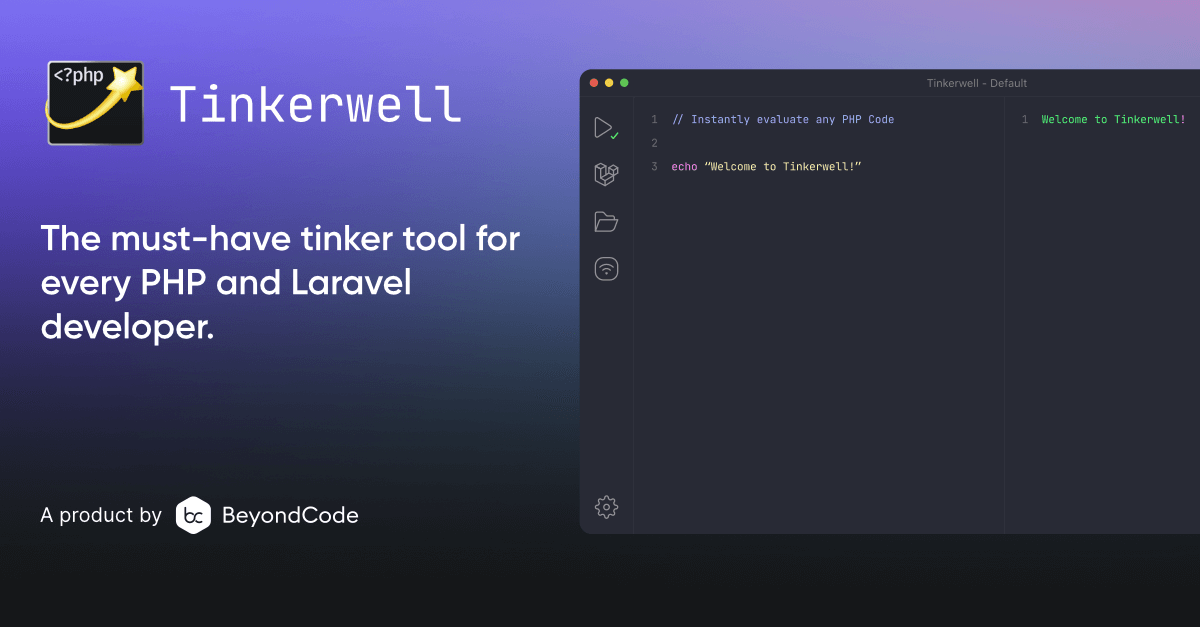
    Its time to Tinkerwell 💫

    Tinkerwell is basically PsySH in a nice UI with sensible defaults. It works really well with both WordPress and Laravel out of the box. If you have ssh access to your production environment it’s so powerful that I instinctively feel like I’m doing something criminal. Try it!

    Postman

    I think Postman is more or less the goto client for working with REST API development and testing and hardly needs an introduction. I’ve used it for years and it just keeps on getting better.

    MySQL Workbench

    I hear a lot of developers using other mac specific tools but I’ve always been quite happy with the official MySQL client from Oracle. Makes it easy to create users, schemas, tables, run queries etc.

    Other stuff

    There’s also a long list of smaller tools that I make use of pretty much every day.

    Better Touch Tool is a utility for some keyboard shortcut customizations in Mac. The one specific thing I needed was a way to drag the current window into the next space without using the mouse. Easy peasy with BTT.

    I use Airfoil satellite to stream audio from my iPhone to my Mac via the AirPlay protocol. I use it mainly for podcasts and audiobooks so I when I come back to the computer from a walk I can just continue streaming to the speakers instead of my headphones. I honestly can’t understand why this is not part of the OS. There’s also an open source tool for this, shairport sync but I never got it to work after the Catalina upgrade.

    I use Apowersoft Screenshot for quick screenshots but since a few months back I’m not able to add annotations to the images. So whenever I need to add text, arrows and other stuff I use Skitch that lets me do that but with a slightly less intuitive workflow.

    Every now and then I need to prevent my computer from going to sleep and when I do, I use Owly.

  • Things to improve Ubuntu 16.04 on Dell XPS 13 (9630)

    Things to improve Ubuntu 16.04 on Dell XPS 13 (9630)

    Update 2017-04-30:

    Since my laptop became more or less impossible to use with the WD15 dock and multiple external monitors, I had to continue looking for a solution. First I spent the better part of Saturday to try to create a Windows To Go installation on a USB stick in order to run the WD15 firmware upgrade (that only works on Windows). After several failed attempts I looked elsewhere for a solution. Turns out that for any 16.04 LTS installation, kernel upgrades are held back, so while a fresh install of 16.04.2 from CD would give you a Linux 4.8 kernel, systems like mine that had 16.04 from start, would still have a 4.4 kernel, the reason is that pretty much the only reason for upgrading the kernel these days is to get better hardware support  System that works fine with 4.4 will not get any benefits from an upgrade. But my system wasn’t working fine and the releases between 4.4 and 4.8, there has been a lot of Dell specific improvements and a bunch of usb-c improvements that could potentially make things better.

    First, make sure you have all relevant upgrades so that your current system is in fact a 16.04.2.

    erik@erik-xps ~ $ cat /etc/lsb-release
     DISTRIB_ID=Ubuntu
     DISTRIB_RELEASE=16.04
     DISTRIB_CODENAME=xenial
     DISTRIB_DESCRIPTION="Ubuntu 16.04.2 LTS"

    If your system still is 16.04.1, run the software updater manually and install everything it suggests.

    When you have all available upgrades, check that your kernel is in fact held back with the following command:

    erik@erik-xps ~ $ uname -r
     4.4.0-75-generic

    If your kernel version is lower than 4.8 and you are experiencing hardware related issues (like my problems with the WD15), you may very well benefit from a kernel upgrade. The easiest way to do that is to enable something called the hardware enablement stack that instructs your system to install the latest kernels and X version. A warning might be in place, once enabled your system is basically going to get new kernels every time Ubuntu has a new point-release. So whenever 16.04.3 is released your kernel is most likely going to be upgraded again. Getting a new kernel every now and then might be too risky for some systems. Your mileage may vary. My reasoning is that since the XPS 13 9630 is still very new hardware (in Linux terms), new kernels will gradually make it better and better so I accept the small risk that some kernel along the line could potentially mess things up.

    To get the hardware enablement stack, I issued the following:

    erik@erik-xps ~ $ sudo apt install --install-recommends xserver-xorg-hwe-16.04

    A few minutes and a reboot later, my laptop was working better with the WD15 than it did before the devestating 4.4.0.75 upgrade that started this whole mess.

    The downside right now seem to be that I get no sound at all from the WD15 now. Neither the audio jack at the front or back seem to be working. Hopefully something that can be resolved but compared to no support for external monitors, a minor issue.

    Power cycling the laptop AND the WD15 fixed the audio issue.


    Update 2017-04-28:

    After getting automatically upgraded to the latest Kernel (4.4.0.75) this week I had a proper sh*t storm of issues with my external monitors for two days. Sometimes they wouldn’t switch on after a cold boot. Sometimes I see the Ubuntu login screen on the external monitors for a second or two before they switch off. Sometimes the external keyboard and mouse wouldn’t work after boot.  Even the screensaver would start messing with the external monitors and keyboard, everything was basically random but with a strong bias towards not working at all.

    I gradually tracked it down to being an issue with the WD15 dock and its usb-c connection. Some searching around led me to this thread on the Dell Community forums that made me realize I’m running an outdated BIOS, I had version 1.0.7 but the current version is 1.2.3 . I downloaded and updated the the new bios and after 1-2 hours of running, a lot of dock/usb-c related issues seems to be fixed. I recommend every user to use an updated BIOS, but if you’re using an usb-c dock with your Dell XPS, I’d say this BIOS update is mandatory.

    New update: I spoke too soon, most of the issues remain the same.

    New daily driver

    This week my new daily driver arrived. A brand new Kaby Lake Dell XPS 13 Developers Edition (late 2016) that comes with Ubuntu pre-installed. It’s the first time in good number of years that I’m working with latest gen hardware and it’s also the first time I try a laptop with manufacturer support for Ubuntu. Interesting indeed. I also purchased a Dell WD15 dock to hook it up to my 2 22″ screens in the home office.

    Apart from a few “paper cuts”, I just love this laptop. It’s the first time ever that I own a laptop with more than 6 hours of (realistic) battery life out of the box. The screen is gorgeous and the backlit keyboard feels really comfortable. If you’re looking for a high end laptop to run Linux, I highly recommend this one.

    But as I said above, there are a few annoying things that needs to be improved. This blog post is my way of documenting the changes I’ve made so far and it’s very likely that I keep expanding this post as I discover and hopefully fix issues.

    Touchpad

    This laptop comes with a really nice trackpad. But when the computer first boots, it will have two separate trackpad drivers active. This makes synclient (the software that controls trackpad configuration) all confused and attach to the wrong driver. The trackpad will mostly work, but it’s not going to be possible to disable the trackpad while typing. This in turn means that if you enable “tap to click” on the trackpad, you will accidentally move the cursor around by “tapping” the trackpad with the palm of your hand driving you insane very quickly.

    The solution is a two step process:

    Install touchpad-indicator

    touchpad-indicator is a utiility that sits in the upper right hand indicator area in Unity. This util gives you some additional configuration settings for the touchpad, “disable touchpad on typing” being the important one for me.

    Touchpad indicator

    Touchpad indiator UI

    To install it:

    $ sudo add-apt-repository ppa:atareao/atareao
    $ sudo apt-get update
    $ sudo apt-get install touchpad-indicator

    After installing it, I had to start it manually once, and then tell it to autostart on it’s General Options tab.

    $ /opt/extras.ubuntu.com/touchpad-indicator/bin/touchpad-indicatDisable the unneeded touchpad driver

    Before touchpad-indicator can work, I also needed to disable the unnedded touchpad driver, the third answer in this thread explains how it’s done: https://ubuntuforums.org/showthread.php?t=2316240

    Edit: Another thing that might improve the touchpad is to enable PalmDetect, I haven’t played around with it enough to know if it matters or not, but I have to add a line int a X11 config file to enable it:

    $ sudo nano /usr/share/X11/xorg.conf.d/50-synaptics.conf

    And then after line 13 i added ‘Option “PalmDetect” “1”‘

    edit 50-synaptics.conf


    WD15 Dock

    There’s a lot to say about the Dell WD15 dock. For the most part, it works as expected but there are some annoying buts that goes with it. From researching online I realized that with the Linux kernel that comes with stock Ubuntu 16.04 a lot just works and for that I’m thankful. The poor customers that tried to make this dock work with previous versions of Ubuntu have suffered much more than I have. There are a few things that doesn’t work though.

    Audio

    The WD15 has a 3.5 mm loudspeaker jack on the back that doesn’t work and an similar 3.5 mm headphone jack on the front that does. Not a huge deal for me, I still get decent quality sound to my external speakers, but the installation could have been prettier:WD15 dock

    The other annoying thing with the dock is that I have a ton of trouble making it understand when to enable the external monitors, when to wake up from suspend and what resolution to use. I’ve had similar issues with other docks (HP) in the past. I don’t have a solution for it, I guess I just slowly adjust to a lot of rebooting and manual screen resolution management.

    The super key

    One of the most odd things with this laptop is that the pre-installed Ubuntu 16.04 comes with a Dell specific package named dell-super-key. This package seem to do just one single thing: disable the super key. If you’re the least bit familiar with Ubuntu, you know that the super key used a lot so exactly what the product developers at Dell was thinking is a mystery to me. Why?

    Anyway, it’s easy to fix. Just uninstall the dell-super-key package and you’re good to go.

    $ sudo apt-get remove dell-super-key

    Conflicting keyboard mapping

    I’m not sure if this is specific to the Dell installation of Ubuntu or not but I haven’t had this issue on any other laptops, including my last HP that was also running 16.04. I work a lot with different works paces and I use Ctrl+Alt+Up/Down to move between them. On this one, there was a conflict in mapping so that the Ctrl+Alt+Up combo was also mapped to “Maximize horizontally”. Whenever I had focus on a window that could be maximized, Ctrl+Alt+Up would maximize that window instead of taking me to the work space I wanted.

    Searching around in the standard places for where to fix this turned up nothing. I disabled the maximize action in every place I could think of; System Settings -> Keyboard -> Shortcuts as well as using the dconf-editor. Turned out to be the Compiz plugin “Grid” that caused the problem. I solved it by simply disabling these keyboard mappings from Grid.

    First, install the Compiz settings tool:

    $ sudo apt-get install compizconfig-settings-manager

    When install, launch it and search for the Grid plugin:

    Compiz Config Settings Grid

    Then in the Grid settings, click to disable and then re-enable the Grid plugin, it will detect the keyboard mapping conflicts and ask you how to resolve them. I told Grid to not set any of the keyboard shortcuts that conflicted with the “Desktop wall” plugin. That way I can keep some of the Grid features I like, such as maximizing a window by dragging it to the top of the screen:

    Resolving conflicts in compiz settings


    Conclusion

    Compared to 10 yeas ago when I first started using Linux as my primary OS, the tweaks needed to make this laptop work as I want it are minimal. Linux and Ubuntu have come a long long way since then and it’s world of difference.

    It would be easy to point a a finger at Dell for shipping a laptop with these issues, but I think that would be very unfair, instead I applaud them for sticking to their Developer Edition program. Sure, the super key thing is weird and perhaps they could have solved the touchpad thing better, but those are solvable. I prefer Dell to keep assembling great hardware, after all, there’s a great community of Linux users around to get the last few issues resolved.

    If you have any questions or if you’ve found another Ubuntu and Dell XPS related issue, please use the comment field below.


  • How to play Star Stable on Linux

    How to play Star Stable on Linux

    TLDR; Star Stable works fine under Wine 1.7.55. Use Play On Linux if you want to avoid too much Wine configuration details.

    UPDATE 2015-12-27

    I’ve recently reinstalled this on a fresh Ubuntu Gnome 15.10 64bit. In order to make Starstable work, I had to install two additional packages from the command prompt:

    $ sudo apt-get install winbind
    $ sudo apt-get install libldap-2.4-2:i386

    If you follow the guide below and get weird error messages in the Play-on-Linux debug log, try the two commands above and give it another try.

    Games on Ubuntu Linux

    And now for something completely different. A few weeks ago I was helping my daughter (12 years old) with some problems on her Windows 8 laptop. Over the 18 months she had it, she had been installing all kinds of crap software. Clicking whatever links and buttons she thought would get her games working the fastest possible way, hardly realizing that she gradually filled her Windows installation with numerous of Trojans, viruses and other malware. We were at a point where I realized that getting her computer clean again would consume more time than to do a complete Windows reinstall, only to risk that we’d be back in the same situation a few months later. So instead we went for Ubuntu Linux.

    Her first reaction after getting familiar with the new desktop environment (Gnome 3), she reported back that Minecraft had never run as smoothly on her laptop before. And the overall impression was that the entire laptop was a lot quicker than it was running Windows 8.

    Everytime she asked for help installing something, I was a little scared that we’d find out that the particular game she was interested in would not run under Linux, but so far we’ve been lucky. Minecraft just works as is and Garrys Mod and Terraria was easy enough to set up in the Steam environment. But today, she really wanted to get Star stable working and that turned out to be a little bit more challenging even though the final solution was pretty straight forward.

    Star stable under Wine

    Star stables own web page claims that the game only runs under Windows and Mac. But I hoped that it could potentially work using Wine. Lately, I’ve found that the Play on Linux project is an excellent way to manage Wine. It’s a nice graphical tool that allows you to manage several Wine environments in parallel.

    Step 1: Install Play On Linux

    Go to the Play On Linux home page and download the version for your Linux distribution. As we were running Ubuntu 15.10, we selected the appropriate Ubuntu deb package.

    Step 2:  Install WINE

    During the installation of Play on Linux, it’s quite possible that it will complain about not finding Wine on your computer. If so, install it using the Package manager on your computer (in our case, the Ubuntu Software Center)

    Step 3: Add support for Wine 1.7.55

    Once installed, we’re going to open Play On Linux and add support for the latest version of Wine:

    Manage Wine versions
    Manage Wine versions (click to enlarge)

    And add the latest Wine version, at the time of writing this 1.7.55 by high lighting it and clicking the right arrow button:

    Select the latest stable version (not "staging")
    Select the latest stable version (not “staging”)

    After clicking the right arrow button, a Wizard will start that guides you through the install process.

    Step 4: Download Star Stable Installation program

    Open a browser and got to the Star stable register page to initiate a download of the Star Stable executable. This step requires having or creating a Star Stable account. I’ll leave out the details and just assume you have an account.

    Logging in to Star stable
    Logging in to Star stable

    Once logged in, you’ll get access to the download link. Since you’re doing this from a Linux computer, the page will tell you that Star Stable is only available for Windows and Mac. So click the Windows link to continue. Most likely, you browser will ask you to open a link with an external program, but just ignore that:

    Ignore the request to lauch external application
    Ignore the request to lauch external application.

    ..then, you should be taken to a page that offers manual download of the Installation program StarStableSetup_v921.exe.

    Manual download
    Manual download


    Step 5: Install Star Stable

    Now. Go back to the Play On Linux main window and select install a program:

    Install a program
    Install a program


    On the next screen, click Install a non listed program:

    Install a non listed program
    Install a non listed program

    On the next screen, select to create a new virtual drive:

    New virtual drive
    New virtual drive

    And name the drive:

    Name the virtual drive
    Name the virtual drive

    …on the next screen, check all the boxes, we want to make some changes:

    Configure installation type
    Configure installation type

    …after a few seconds, you get to select the Wine version, select the latest that we enabled in step 3:

    Select latest version
    Select latest version

    ..and on the next screen, select 64-bit version:

    Select 64-bit version
    Select 64-bit version

    ..After a few moments, you’ll get a dialog box where you can edit some Wine settings. We want to select to emulate Windows 7, finish by clicking OK

    Select Windows 7
    Select Windows 7

    ..after another few moments, you’ll get a dialog box with options of packages to install before moving on. To be 100% honest, I’m not sure we need to add support for Direct X, but I did for my daughter so I’ll do the same here. Add support for Direct X, look for a package named POL_install_dxfullsetup, mark it and hit next:

    Install Direct X support
    Install Direct X support

    After downloading some files and installing Direct X, the wizard will finally ask you what file to use for installation:

    Select installation exe
    Select installation exe

    Find the file you downloaded in step 4, most likely in a folder named Downloads:

    Downloads folder
    Downloads folder

    and then click Next. After a few seconds, you should see the Windows installer for Star Stable open:

    Star Stable installer
    Star Stable installer

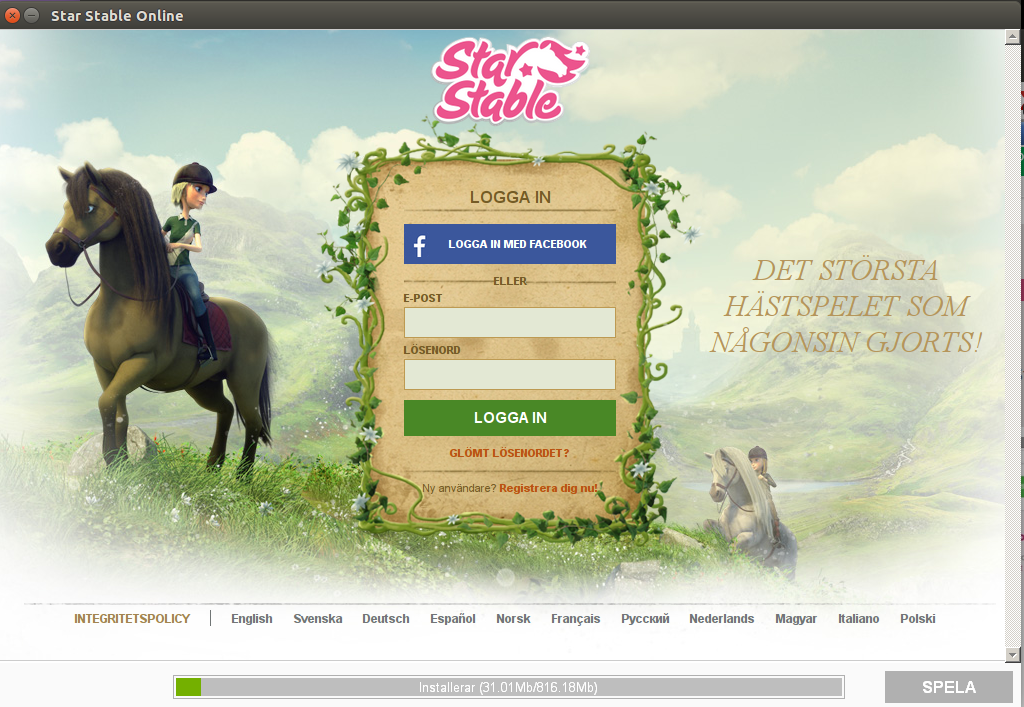
    ..after clicking Next, you will see the Star Stable installer window open. It’s a login form and at the bottom of the screen, you’ll see a progress bar showing a ~800 Mb download:

    Star Stable install screen
    Star Stable install screen (localized version)

    This part will take some time depending on your Internet connection speed. But rest assure, If you’ve gotten this far you’ll most likely have a working installation. Once the progress bar reaches 100% the first time, there will be a couple of updates to download as well, so grab a coffee (or Wine) and relax a few moments before the game launches.

    Step 6: Create a launcher

    One final step. As the Star Stable game started, Play On Linux will be sitting forever to wait for the install process to finish. But it won’t. Instead. Hit Cancel in the Play On Linux installation Wizard and return to the Play On Linux main window. As you can see, there will be no link to the Star Stable game, so we need to add one. Click the Configure icon in the top row:

    No link to Star Stable
    No link to Star Stable

    On the dialog that opens, mark the Starstable virtual drive and click the “Make new shortcut…” button:

    Create a shortcut
    Create a shortcut

    Then find the executable (pink icon) named StarStableOnlineLauncher.exe and click Next and on the next screen, just accept the default name given for the launcher.

    Create laucher step 2
    Create laucher step 2

    …then click Cancel to exit the Wizard and then close the configuration dialog to return to the Play On Linux main screen. You should now have a shortcut for the game. To start the game from now on. Just start the Play On Linux program, select the StarStable launcher and click the Play button on the top row:

    Start Star Stable
    Start Star Stable


    And that’s it folks! Go enjoy Star Stable on you Linux machine. Comments? Questions? Other feedback? Don’t hesitate to leave a comment below.



  • WordPress management the right way

    WordPress management the right way

    I first wrote about Wp-bootstrap in a post a few weeks ago and now it’s time for an update.

    New version 0.2.2

    Version 0.2.2 that was released today is actually quite a release. In this version, Wp-bootstrap is now feature complete to the extent that everything I described in my book, WordPress DevOps is now possible to do using Wp-bootstrap. This means that a bunch of Grunt scripts that quite honestly grew to be fairly complex can be replaced with a well formed, easy to read json file instead. I can’t tell you how nice that feels.

    Quality ASSURANCE

    I’ve got a separate repository on Github with the test cases for Wp-bootstrap. For the 0.2.2 release I spent a lot of time making sure to get code coverage up to an acceptable level. The overall coverage is now at 83%, a number I’m quite happy with at the moment. The missing 17% are in a part of the package that I’m considering scrapping and it’s not presented in the documentation, so no one should stumble on the untested code by mistake.

    References

    The big thing in this release is reference management. When you import options into WordPress using Wp-bootstrap, you might sometimes include a value that is actually a reference to a post ID. The most obvious example is the WordPress option “page_on_front” that stores the page ID for the page that works as the front page of your site. If you are using Wp-bootstrap to import the front page itself, chances are that the ID of that front page will be different between your development and production installations. So if you import the “page_on_front” setting, the integer value in the database will almost certainly be wrong.

    Wp-bootstrap can overcome this problem by managing these references for you. Just tell Wp-bootstrap which settings that contains references to a page/post/term. If that item was included in the imported data, Wp-bootstrap will update the database accordingly. This is a very powerful feature and it works across both posts (pages, posts, attachments custom post types) and taxonomy terms (categories, tags etc).

    Intended use case

    There is an intended use case or workflow that I had in mind developing this package. A quick overview:

    On the development server (hint: use Vagrant):

    • Start a new project by requiring wp-bootstrap in composer.json
    • Run vendor/bin/wpboostrap wp-init-composer to get easier access to the wp-bootstrap commands
    • Create a localsettings.json and appsettings.json
    • Make sure you exclude localsettings.json from source code control
    • Initiate the development installation with commands composer wp-install and composer wp-setup
    • As settings are updated, use the WP-CFM interface in WordPress Admin to include the relevant settings into the application configuration
    • As plugins and themes are needed, add them to appsettings.json and rerun the wp-setup command to get them installed into your local environment
    • As posts and menus are added, include them in appsettings.json.
    • When it’s time to deploy to a staging or production environment, run composer wp-exportcommand to get all content serialized to disk. Add them to your Git repo

    On the staging or production server:

    • Create the local database
    • Check out the project from Git
    • Create up your localsettings.json file with the relevant passwords and paths.
    • Run composer update
    • Run vendor/bin/wpboostrap wp-init-composer to get easier access to the wp-bootstrap commands
    • Run composer wp-install, composer wp-setup and composer wp-import

    Once the target environment has been setup, new changes from the development environment can be pushed by checking out the new changes using Git and rerunning wp-setup and wp-import.

    Take it for a spin

    Now it’s over to you. If you’re interested in a more structured workflow around WordPress, give Wp-bootstrap a try and let me know what you think in the comments section. Or better, get in touch to let me know how you can contribute to Wp-bootstrap. I’m eager to hear from you.

  • Easy wp-cli automation with wp-bootstrap

    Easy wp-cli automation with wp-bootstrap

    I’ve created a PHP Composer package to provide an easier way to automate WordPress installations using wp-cli. If you are unfamiliar with wp-cli and composer. I suggest you read up on composer here, wp-cli here and the rationale of automation in my book or in my blog series on the subject.

    Another great resources for learning more about using WordPress, git and Composer together is to check out the roots.io post on the subject as well as their Bedrock project.

    What is wp-bootstrap

    Wp-bootstrap is a composer package that adds a bunch of commands to your environment that helps you set up WordPress and themes, plugins and settings in a consistent manner using configuration files rather than scripts or worse, point and click installations. Wp-bootstrap depends on two files that it expects to find in your project root folder:

    1. appsettings.json that contains settings, themes and plugins that your WordPress site needs to use. It also has a way to manage some of the content of your application. This file is meant to be a part of your application and managed in a source code control system.
    2. localsettings.json that contains settings that are specific to each environment. This includes database name, password, WordPress installation path and more. This file is meant to be unique to each environment that your site runs in (development, staging, production etc) and is not supposed to be managed by source code control.

    By combining these two files wp-bootstrap is able to setup a WordPress installation from scratch, let’s see how.

    INSTALLING wp-bootstrap

    [code]
    {
    "require": {
    "eriktorsner/wp-bootstrap": "0.2.*"
    }
    }
    [/code]

    [code]
    $ composer update
    $ vendor/bin/wpbootstrap wp-init-composer
    [/code]

    To include wp-bootstrap to your project, just add the above lines to your composer.json file. Or if you prefer, use this command:

    [code]
    $ composer require eriktorsner/wp-bootstrap
    $ vendor/bin/wpbootstrap wp-init-composer
    [/code]

    By running the command “vendor/bin/wpbootstrap wp-init-composer” to add the wp-bootstrap commands to composer so that you can call wp-bootstrap easier, this step is not strictly needed.

    LOCALSETTINGS.JSON

    In addition to installing wp-bootstrap, you also need to have a localsettings to tell wp-bootstrap where to find your database, some of the credentials and where to install WordPress (where the web server expects to serve the files from). Note that your’re not really supposed to install WordPress in the same folder as your configuration files. Here’s a sample localsettings.json file:

    [code]
    {
    "environment": "development",
    "url": "www.wordpressapp.local",
    "dbhost": "localhost",
    "dbname": "wordpress",
    "dbuser": "wordpress",
    "dbpass": "wordpress",
    "wpuser": "admin",
    "wppass": "admin",
    "wppath": "/vagrant/www/wordpress-default";
    }
    [/code]

    I think it’s fairly self explanatory, but here it goes:

    • environment is typically one of the values “development”, “staging” or “production”. A description of the environment that this installation is
    • url The url for this installation
    • dbhost, dbname, dbuser and dbpass are the database credentials. Wp-bootstrap assumes that a database already exists and is accessible using those credentials
    • wpuser, wppass are the credentials for the default WordPress admin user.
    • wppath is the path where WordPress will be installed.

    APPSETTINGS.JSON

    The last thing you need to add is an application settings file. The very minimum file you need to provide is:

    [code]
    {
    "title": "TestingComposer approach";
    }
    [/code]

    Title is the only mandatory field in this file, but it’s far from the only one.

    Section: plugins:

    This section consists of two sub arrays “standard” and “local”. Each array contains plugin names that should be installed and activated on the target WordPress site.

    • standard Fetches plugins from the official WordPress repository. If a specific version is needed, specify the version using a colon and the version identifier i.e if-menu:0.2.1
    • local A list of plugins in your local project folder. Plugins are expected to be located in folder projectroot/wp-content/plugins/. Local plugins are symlinked into place in the wp-content folder of the WordPress installation specified by wppath in localsettings.json

    Section: themes

    Similar to the plugins section but for themes.

    • standard Fetches themes from the official WordPress repository. If a specific version is needed, specify the version using a colon and the version identifier i.e footheme:1.1
    • local A list of themes in your local project folder. The themes are expected to be located in folder projectroot/wp-content/themes/. Local themes are symlinked into place in the wp-content folder of the WordPress installation specified by wppath in localsettings.json
    • active A string specifying what theme to activate.

    Section: settings

    A list of settings that will be applied to the WordPress installation using the wp-cli command “option update %s”. Currently only supports simple scalar values (strings and integers)

    Using wp-bootstrap

    The easiest way to use wp-bootstrap is to simply call the binary file that is added to your vendor/bin subfolder. Using the sample files above, you could do this:

    [code]
    # Install WordPress
    $ vendor/bin/wpbootstrap wp-install

    # alternate:
    $ composer wp-install
    [/code]

    After running this command, you should have a fully working WordPress installation, accessible via the url specified in your localsettings.json file. The title of the site should match whatever you specified as the title attribute in the appsettings.json file.

    More Settings

    So far we’ve managed to reproduce what wp-cli can do in three separate commands, good but perhaps not that great. The real power of wp-bootstrap lies in extending appsettings.json with some more settings. Here’s a slightly more advanced example:

    [code]
    {
    "title": "TestingComposer approach",
    "plugins": {
    "standard": [
    "if-menu:0.21",
    "baw-login-logout-menu",
    "wp-cfm",
    "google-analyticator",
    "wpmandrill"
    ],
    "local": [
    "wordpressapp"
    ]
    },
    "themes": {
    "standard": [
    "agama"
    ],
    "active": "agama"
    },
    "settings": {
    "blogname": "New title 2",
    "blogdescription": "The next tagline"
    }
    }
    [/code]

    Using this file, we can customize the WordPress installation with a new command:

    [code]
    # Install plugins, themes etc.
    $ vendor/bin/wpbootstrap wp-setup

    # alternate
    $ composer wp-setup
    [/code]

    Let’s walk through this:

    • In the Plugins section, we specify a number of standard plugins that will be fetched, installed and activated from the WordPress plugin repository. The if-menu plugins will be installed with version 0.21, but the rest of that list will just be whatever version that is the latest in the repository
    • We also install and activate a local plugin that will be symlinked from [project root]/wp-content/plugins into the WordPress installation. This is so that we can include our own plugins developed specifically for this project.
    • The themes section works very similar, the theme agama is added to the installation from the WordPress theme repository and it’s also set as the active theme.
    • And finally, the settings “blogname” and “blogdescription” are overwritten with the values specified. These names corresponds to what the settings are called in the wp_options database table.

    There are more settings…

    If you’re curious enough to try this, I suggest you head on over to the github page for this project. It got some additional settings that you should read up on, especially if you’re keen to manage pages, menus and images in a similar fashion.

    I’m also very curious to hear what you think about this, don’t hesitate to let me know in the comments. You can also reach out to me on Twitter with comments or questions.


    WordPress DevOps – The book

    I’ve written an ebook on this subject. Released in September this year on Leanpub.com. Expect a 100+ tightly written pages where we walk through the creation of the skeleton of a WordPress based Saas application, connected to Stripe and Paypal with a working deployment process that takes content into account. Just add your billion dollar idea. Jump on over to Leanpub to get your copy.

    WordPress DevOps - Strategies for developing and deploying with WordPress

    WordPress DevOps – Strategies for developing and deploying with WordPress


    [wysija_form id=”3″]

  • WordPress configuration management

    WordPress configuration management

    This is the 4th post in a series of developing for WordPress in a DevOps friendly way. The other articles:

    1. Introduction to WordPress and DevOps
    2. Developing with WordPress and Vagrant
    3. Grunt Automation for WordPress developer
    4. WordPress configuration management

    In the previous posts in this series we’ve been looking at how to work with Vagrant and WordPress and how to automate setup work using Grunt and WP-CLI. In this posts, we’ll look a little bit on how we can transfer various settings between the WordPress database and into text files in the source code tree. Because as soon as we have the settings in files, we can easily transfer those settings to a target system such as a staging environment or the live site.

    There’s a Git repository available with code for this post here: https://github.com/eriktorsner/wpconfigurationmanagement I suggest you clone or download the code to your development computer to make it easier to follow along.

    WordPress settings

    A Setting is any of the small or large things you change in the Settings menu in the WordPress admin area. The number of blog posts shown on the first page is a setting and so is the site title and the default date format.

    Settings
    Some of the well known settings from the WordPress admin area


    WordPress uses the database to store settings into a table named wp_options (at least as long as you are using the standard wp_ prefix). Most of the settings that a core WordPress installation will put into the wp_options table are simple scalar values, a string or a numeric value. But some of the settings consists of larger more complex structs like an array or even arrays containing objects containing arrays. The internal WordPress code makes sure that pretty much anything you can represent in a PHP variable can be stored as a setting. If needed, WordPress uses the native PHP function serialize() to convert any given variable to a text representation suitable for database storage and then unserialize() to convert it back when needed.

    Serializing

    The concept of taking a complex structure and transforming it into a text representation is called seriallization, so no wonder the PHP functions are named as they are. In our ambitions to automate the setup of WordPress, we want to serialize some settings to a text file that we can keep in our source code repository. When we first install a development version of our WordPress site in a new environment, or when we want to deploy it to another environment, we want to take that text file with serialized settings and update the database. To do this we will continue to build on the WordPress skeleton from the previous posts, you’ll find it in the Github repository for this post. To get started with this code repository, please refer to the first post to learn a little bit about Vagrant and how we’re using it. A few notes:

    • This repo uses an evolved version of the Vagrantfile. Only the rows you need to change are present, everything else is moved in to a file in the vagrant/ sub folder.
    • No need to change anytning inside the vagrant/ sub folder, everything it’s taken care of during provisioning.

     We’re going to talk about two different approaches for managing settings in a text file. The first approach is using Gruntfile.js itself, the other approach uses the free plugin WP-CFM.

    Keeping settings in Gruntfile.js

    The most straight forward way would be to use Gruntfile and Wp-cli. The settings themselves will be in the form of Wp-cli statements that will be automatically inserted into the target WordPress installation when the Grunt task wp-setup is executed.

    [code firstline=”36″ title=”wp-setup task in Gruntfile” language=”js” highlight=”47-49″]

    grunt.registerTask(‘wp-setup’, ”, function() {
    ls = getLocalsettings();
    wpcmd = ‘wp –path=’ + ls.wppath + ‘ –allow-root ‘;

    // some standard plugins
    stdplugins = [‘google-analyticator’, ‘wp-cfm’];
    for(i=0;i<stdplugins.length;i++) {
    name = stdplugins[i];
    shell.exec(wpcmd + ‘plugin install –activate ‘ + name);
    }

    shell.exec(wpcmd + ‘option update blogname "New blog title"’);
    shell.exec(wpcmd + ‘option update blogdescription "experimental tagline"’);
    shell.exec(wpcmd + ‘option update posts_per_page "20"’);

    })
    [/code]

    The three highlighted rows will update the Site title (blogname), the tag line (blogdescription) and the ‘Blog pages show at most’ setting (posts_per_page) that are found in WordPress Admin. This is a very manual form of serializing settings to disk and it’s easy to get started with. If you only have a few of them that you need to set, this approach will work but it has a few downsides.

    Obviously, the manual work involved in writing the wp-cli statements in your Grunt file is not very optimal. Easy to forget individual settings, easy to lose the overview etc. The other downside is that changes you make in WordPress admin has no way of automatically find their way into the Gruntfile. You’re in for a lot of manual work. But there is another way.

    WP-CFM

    WP-CFM is a free plugin available in the WordPress plugin repository. It’s name stands for WordPress Configuration Management and it does exactly that: Configuration Management. WP-CFM uses a concept call bundels. A bundle is a group of individual WordPress settings. WP-CFM can Push a bundle to file, meaning that it will read the value of each of the settings in the bundle from the database and store them in a file. And later, WP-CFM can Pull that file back in and restore those values in the database.

    In the Gruntfile above I took the liberty of installing and activating wp-cfm in the WordPress installation in the Vagrant box, so if you’re following along you should already have it in WordPress. This plugin adds a menu item under settings named WP-CFM. The main WP-CFM screen looks like this:

    WP-CFM admin screen

    We want to create a bundle with the same three setting that we handled in the Grunt task above. So we’ll go ahead and click ‘Add Bundle’, name it ‘settings’ and select the individual settings items we need:

    Creating a new bundle in WP-CFM
    Creating a new bundle in WP-CFM (note, the posts_per_page setting is under the fold in this image)

    After the bundle is created and saved, we can click ‘Push’ to store those three settings to disk. You should end up with a text file in /vagrant/www/wordpress-default/wp-content/config named settings.json:

    [code title=”wp-content/config/settings.json” language=”js”]
    {
    "blogdescription": "experimental tagline",
    "blogname": "New blog title",
    "posts_per_page": "20",
    ".label": "settings";
    }
    [/code]

    As you can see, WP-CFM uses a JSON file to store the individual values and stores the file in a predictable location. For fun, we can change the “blogname” setting inside this file and try the Pull button (you probably will need to reload the page for the Pull button to become active). Once the updated settings has been pulled into the database and you’ve reloaded the page, you should see that whatever value you selected for “blogname” now is in the page title.

    A little automation

    The one great thing with WP-CFM that I didn’t mention yet is that it was written with support for Wp-cli right out of the box. WP-CFM adds a command verb to Wp-cli named ‘config’ with sub commands push and pull. We just need to call these two commands from our Gruntfile to automate things. As usual,  a little bit of plumbing is also needed as well, best explained with code, so let’s have a look at the two new Grunt tasks that we’ve added for this post:

    [code title=”Gruntfile.js” language=”js” firstline=”53″]

    grunt.registerTask(‘wp-export’, ”, function() {
    ls = getLocalsettings();
    wpcmd = ‘wp –path=’ + ls.wppath + ‘ –allow-root ‘;
    pwd = shell.pwd();

    shell.mkdir(‘-p’, pwd + ‘/config’);

    // push settings from DB to file
    src = ls.wppath + ‘/wp-content/config/settings.json’;
    trg = pwd + ‘/config/settings.json’;
    shell.exec(wpcmd + ‘config push settings’);
    shell.cp(‘-f’, src, trg);
    });

    grunt.registerTask(‘wp-import’, ”, function() {
    ls = getLocalsettings();
    wpcmd = ‘wp –path=’ + ls.wppath + ‘ –allow-root ‘;
    pwd = shell.pwd();

    shell.mkdir(‘-p’, ls.wppath + ‘/wp-content/config’);

    src = pwd + ‘/config/settings.json’;
    trg = ls.wppath + ‘/wp-content/config/settings.json’;
    shell.cp(‘-f’, src, trg);
    shell.exec(wpcmd + ‘config pull settings’);
    });

    [/code]

    • Line 53, define the task wp-export
    • Line 58, create the /vagrant/config folder unless it already exists
    • Line 63, run the wp-cli command ‘config push’ for the bundle named ‘settings’
    • Line 64, copy the settings file into our local folder /vagrant/config where it will be under source code control


    • Line 67, define the taks wp-import
    • Line 72, create the folder www/wordpress-default/wp-content/config unless it already exists
    • Line 76, copy the settings.json file from the project folder into the correct folder in the WordPress installation (where WP-CFM will expect to find it)
    • Line 77, run the wp-cli command ‘config pull’ for the bundle named settings so that each settings is pulled from the file into the database

    Since the WP-CFM plugin was build for automation from the start, our work is reduced to managing the settings file so that we can keep in under source code control. With these two Grunt tasks, we’ve now automated the process for storing WordPress settings in the source code control system.

    A few pitfalls

    Using WP-CFM together with Grunt and wp-cli takes us a long way in terms of creating a fully automated process for managing WordPress.  However, this process isn’t really perfect yet. There are a few issues to look out for when it comes to WP-CFM:

    • Some settings might store the absolute URL for a post or page on the WordPress installation. If that setting is pulled from disk to the database unchanged, the live site might end up with URL references to the development version of the site
    • Some settings contains references to a page, a post or a menu item using the internal database id and the database ID might differ between the development version and the production version.

    These two issues as well as the challenge of moving actual content (pages, images etc) from development to production is going to be covered in future posts in this series. So stay tuned!


    WordPress DevOps – The book

    I’ve written an ebook on this subject. Released in September this year on Leanpub.com. Expect a 100+ tightly written pages where we walk through the creation of the skeleton of a WordPress based Saas application, connected to Stripe and Paypal with a working deployment process that takes content into account. Just add your billion dollar idea. Jump on over to Leanpub to get your copy.

    WordPress DevOps - Strategies for developing and deploying with WordPress
    WordPress DevOps – Strategies for developing and deploying with WordPress


    [wysija_form id=”3″]

  • WordPress DevOps – The book

    WordPress DevOps – The book

    Today the eBook on WordPress and DevOps was released.  Go directly to Leanpub and get your copy.

    WordPress DevOps
    WordPress DevOps – The book

    What is it about?

    The challenge

    When dealing with WordPress sites in the long run, it’s easy to end up in trouble. Have you ever upgrading a plugin just to find that the upgraded version ruined your site? Have you ever hesitated to upgrade WordPress core since you are not sure about any nasty side effects? If so, you are in good company. Lots of WordPress developers and site administrators find themselves in this situation daily.

    The common advice for this problem is to take a backup of the entire site, restore the backup on another server and make all upgrades and other changes on the alternate site. But then what? If you just copy all those changes back together with the database to the live site, you’ll risk losing content that was added while you were working. Any new posts, comments or orders that came is will simply be gone. So you can chose between accepting that potential loss or transfer the changes back manually once you’ve figured them out. Sometimes it might be easy, but it will often be messy process.

    At the end, you’re going to ask yourself if that messy process is really worth your time.

    A solution

    In this book, I walk the reader through a solution that is based on the concept of trying to separate application (code, menus, pages etc.) from content and a method creating your own tools to manage that separation. The book is a walk through of the process of setting up a reasonably complex WordPress membership site where the separation between application and content becomes clear. Covering how to start using modern tools like Vagrant and Git to manage a safe development environment, how to deploy safely using Rocketeer, a dedicated deployment tool and how to structure the WordPress application so that it’s easy to develop locally and deploy safely.

    Get IT? Get IT!

    This book is currently sold via Leanpub where you get to decide the price yourself (well almost anyway). As with all their titles, you can download the book as a pdf, mobi or epub format, so you can read it on pretty much any computer or eBook reader software. The book comes with lots of code that is available to readers via a Github, so you’re not only learning, you’ll also have the code to get your WordPress DevOps process started quickly.

    Click the cover image below or sign up for the newsletter in the form below and receive a 25% discount code. Valid until October 31st 2015.

    WordPress DevOps
    WordPress DevOps – The book

    Note. As a Leanpub author I’m specifying a minimum and a recommended price for you to pay. On top of that Leanpub adds VAT depending on your location. With the discount code, the minimum price is discounted by 25%

    [wysija_form id=”3″]

  • CoSchedule for the win!

    CoSchedule for the win!

    I’ve just started using CoSchedule, an editorial calendar tool that helps you plan your content creation ahead of time. It’s an external service that connects with your WordPress blog using a special plugin.

    If you’re serious about creating content, you want to post new stuff on a regular basis a couple of times a week. That’s when an editorial calendar will come in very handy. Starting at $15/month CoSchedule will give you a scheduling tool as well as some extra super powers that makes your life as a publisher a lot easier.

    But in all honesty, keeping a calendar is simple, you could do that in Trello or Google Calendar just as easy. It’s all the other things that CoSchedule brings that really makes it worth the monthly fee.

    Scheduling

    CoSchedule calendar
    The calendar view

    First of all, you have the calendar view where you get an overview of all your planned posts. Rescheduling is a matter of dragging an item to a different day, just as easy as you’d image from looking at the screen shot above.

    Notice the social media icons that appear in the schedule above? They are items in the social queue which is one of the first super powers that CoSchedule brings. So what is that?

    Social queue

    For each post you create, CoSchedule will help you promote it on different social networks. As part of the onboarding process you are asked to connect CoSchedule to an many Social Networks as you need or want. They currently support Twitter, Facebook, LinkedIn, Tumblr and Google+. (you can go back to the settings page and add or update social profiles later).

    Right in the post editor in WordPress, you’ll get a tool that allows you to create posts that will be sent out to your social media networks. In the screen shot below, I’m creating a Twitter message that will go out the same day as this very post is published.

    You can place as many messages in the social queue as you want to and you can decide what day (same day, day after, week after etc) as well as the time of day that the social messages are sent out.

    Add social promotion
    Adding an item to the social queue

    Statistics

    CoSchedule features a statistics page that shows you how many links/shares your WordPress posts gets on the various social networks. As you can see below, my stuff is mostly shared on Twitter, but that’s just me, your stuff might me more shared elsewhere (yes, I’ve obfuscated  the actual numbers in the screenshot below, the real report shows the exact numbers).

    CoSchedule Top Posts
    The top posts screen in CoSchedule

    So this is the second super power delivered by CoSchedule, a way to quickly see what’s working in terms of sharing and linking in the social media world. Just as the social queue described above, this feature alone is worth paying for. It helps you understand what works and what doesn’t.

    Team features

    CoSchedule is not just for you. If you are more than one working on your WordPress blog, you can share CoSchedule withing the team and assign tasks to one another. I haven’t explored this feature at all since I’m the only one publishing on this blog. CoSchedule has a video demonstrating these features, so go check it out.

    Integrations

    CoSchedule has lots of integrations that boosts what you can do with it. Most notably:

    • Google Calendar The Google Calendar integration makes whatever you put in your editorial calendar visible in your standard Google Calendar view. That means that whenever I have a look in my calendar to schedule meetings etc. I also see what I have committed to on my blog. If you have a post planned for Tuesday morning, don’t fill Monday back to back with other engagements.
    • Bit.ly I was already a bit.ly user  before so this is great for me. Bit.ly is a link shortener service that also delivers great statistics on who clicks on your links. So every link used by CoSchedule is also visible in my Bit.ly account complete with all the analytics I’m used to.
    • Google Analytics If you are on one of the more expensive plans you can have CoSchedule create special analytics dashboards in your Google Analytics account for even more advanced insights into who visits your posts, where they came from etc. all integrated with your CoSchedule efforts.
    • Evernote I haven’t tested the Evernote integration simply because I’m not an Evernote user. But this will allow you to connect Evernote notebooks and share them with your team for even simpler content creation. I bet this is a big deal for Evernote users, but I can’t really comment on how useful this is.

    Support and getting started

    Getting started was a breeze. CoSchedule has worked a lot with the on-boarding experience, you can tell. In fact, when I had gone through the steps to get started, I was so impressed that I spontaneously sent a Tweet saying just how impressed I was:

    That’s actually two nice things. First, the on-boarding really is great! Second, they have a support team that are paying attention. I haven’t had a reason to contact them with a real support question yet so I wouldn’t now, but I get the feeling that they are actively listening.

    Downsides?

    So what’s the downsides? Well first of all this doesn’t come for free even if that’s what we’ve gotten spoiled with when it comes to WordPress plugins. CoSchedule is a paid service but they let you evaluate it for 2 weeks before deciding on buying. The plans start at $15 per month for a single user and $30 per month for teams. Personally, I thought $15 was in the higher range of what I’d be willing to pay as a single user, but after using it only a short while, I don’t want my WordPress installation to lose the “Calendar” menu item. I haven’t monetized my publishing a lot yet, but even so, I’m confident that this product can help me earn more than $15 extra per month.

    The one thing think they’ve could have done better is scheduling the social queue. As far as I understand right now, I have to schedule each individual social message by hand. I would have loved a feature that allowed me to take a social message I’m happy with and say “repeat this every 4th day until…. X”. On the other hand, that kind of feature would be misused by spammers so we should all be glad that it doesn’t exist.

    The other thing I’d like to see is the effectiveness of each social message. If I send out tweets promoting my latest post, I will vary the wording in the message slightly in each of them. Afterwords, it would be really nice to see which ones that are driving the most traffic back to the post. Perhaps this is possible using the various Google Analytics dashboards they have and I just haven’t understood how. It’s a complex tool.

    Summary

    If you’re serious about creating content on your blog on a regular basis and if you want to get some super powers in terms of scheduling, promotion and analytics, CoSchedule is most likely the tool you’re looking for.

    If my review doesn’t give you enough, go give them a try. First 14 days are free. The only thing you’re risking is falling in love and start a subscription simply because you can’t imagine going back to not using CoSchedule.