
Category: Other

  • Software I use – 2021

    Software I use – 2021

    I haven’t written anything in this space for quite some time now. Last time I did I had just upgraded to a new Dell laptop with factory installed Ubuntu 16.04 (told you it was a long time ago). Well, that one got stolen and I thought that it might be a good time to switch to a Mac as the daily driver. So I did.

    Desktop tools

    Web browser

    Secure, Fast & Private Web Browser with Adblocker | Brave Browser

    I recently switched from Chrome to using Brave Browser as my primary web browser. Just like Chrome it’s Chromium-based which means that almost everything works the same way that I’m used to. I may actually give both Safari and standard Chromium a test drive before I decide which one to stick with.

    Messaging and email

    Overall Email has become less important in the past 6 months as Ive moved away from traditional consulting almost completely. The communication tool I use the most these days is Slack. This choice is obviously dependant on what the rest of your team is using but I actually also use Slack for solo projects because of some of the nice integrations.

    All my email accounts are Gmail and I use the Spark email client to manage them. I actually like the Gmail web UI but as soon as you have more than one account it gets clunky. Spark also has a great iOS client which makes managing emails as easy on the mobile devices.

    Password management

    Another recent switch. I was using LastPass for password management for a long time but recently switched to BitWarden. Last year LastPass announced that they were discontinuing their MacOS native client which made me go look for alternatives. Then again this year they changed their licensing model a bit. So now I’m a very happy using Bitwarden premium.

    Writing

    Even though I haven’t updated this blog a lot lately I am writing quite a bit of documentation and I tend to use Markdown whenever possible and when I do I use Typora. I also use the Grammarly desktop app from time to time to get hints on how to improve my language.

    Terminal

    I’m sort of always in the terminal so I’m actually not putting this under the dev tools section. I’m using iTerm2 instead of the terminal app that comes built in with MacOS. It has lots of features that I hardly know how to use but I use their split panes feature exactly all of the time.
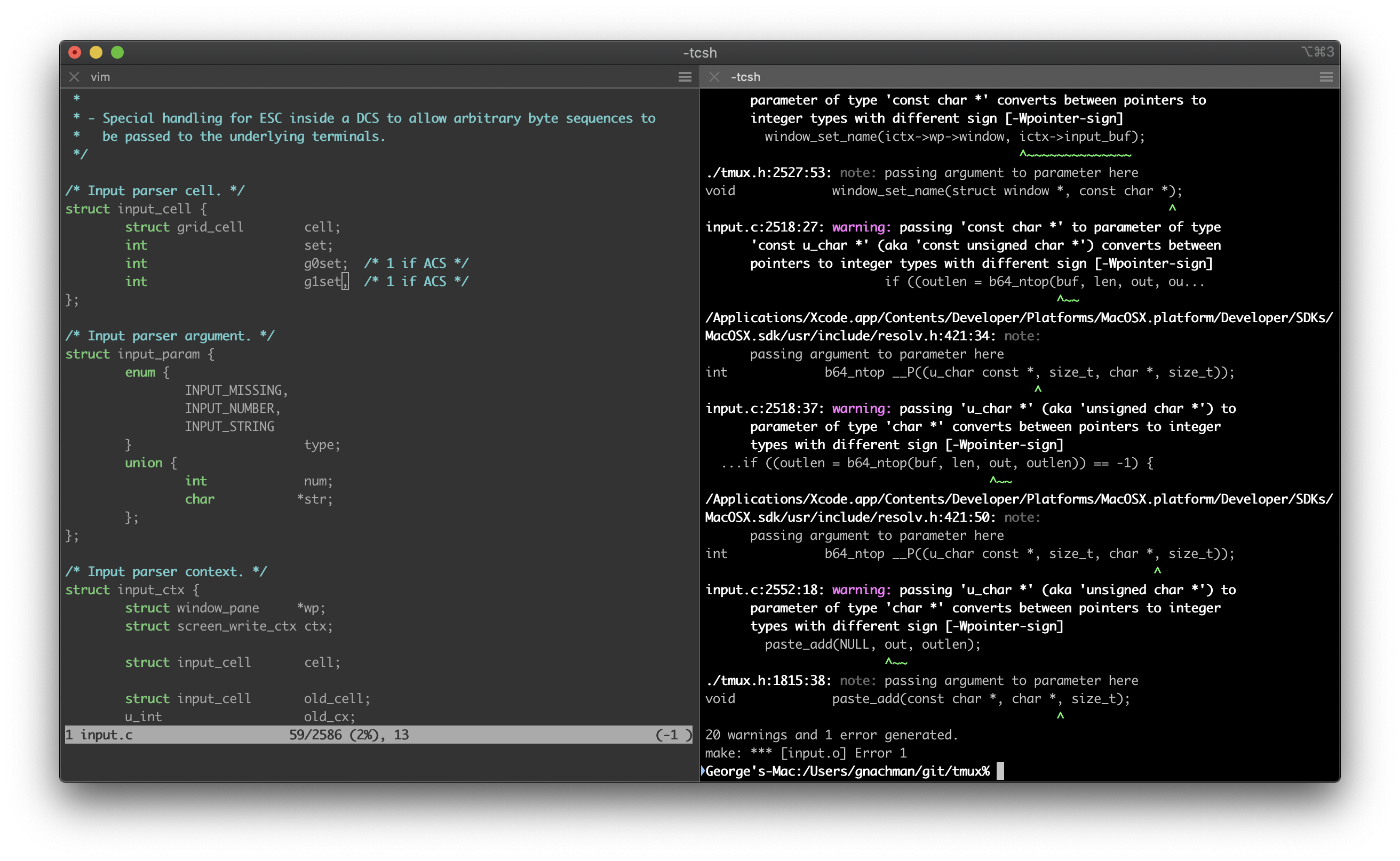
    I’m using Z shell that has been the standard shell for Mac a few years now (replacing bash). Like so many others I also use the Oh My Zsh framework to configure it. From their own presentation:

    Oh My Zsh will not make you a 10x developer…but you may feel like one!

    https://ohmyz.sh/

    Development tools

    So I work almost exclusively with WordPress these days, as an effect from that most of the tools I use are PHP and MySQL centric.

    Development IDE – PHPStorm

    I use PHPStorm as my main IDE. It’s 200 Euros for the first year but the licensing cost then gradually shrinks to 120 Euros a year from the third year and onwards. But I won’t try to sell you on PHPStorm in this post I’m just going to say I think it’s well worth the yearly license cost.

    I also still use Sublime Text 3 for random note keeping and shorter texts burps but I hardly ever use it for writing code any longer.

    Laravel Valet

    This switch is super recent, I have been using Valet less than a week.

    As a carry over from using Linux I was fully invested in using Vagrant backed by VirtualBox for everything related to development. This isn’t nearly as nice on Mac as it is on Linux because the differences in disk performance makes it a royal PITA a lot of the time. Last week I moved one (1) test site over to Valet and decided that this is my new default dev environment in a heart beat.

    Vagrant

    I was using Vagrant exclusively up until just a week ago but from now on I’m probably only going to use it when it’s really crucial that I can emulate the entire production environment and that environment is more than just the web app (other sub systems, cron jobs, multiple databases).

    Tinkerwell
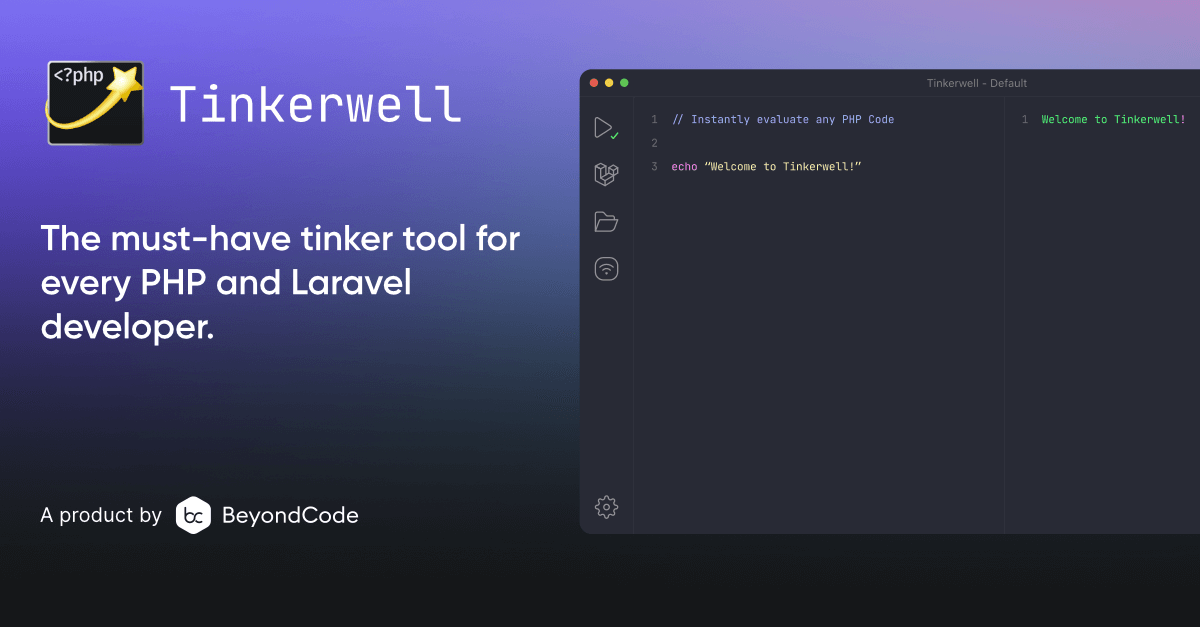
    Its time to Tinkerwell 💫

    Tinkerwell is basically PsySH in a nice UI with sensible defaults. It works really well with both WordPress and Laravel out of the box. If you have ssh access to your production environment it’s so powerful that I instinctively feel like I’m doing something criminal. Try it!

    Postman

    I think Postman is more or less the goto client for working with REST API development and testing and hardly needs an introduction. I’ve used it for years and it just keeps on getting better.

    MySQL Workbench

    I hear a lot of developers using other mac specific tools but I’ve always been quite happy with the official MySQL client from Oracle. Makes it easy to create users, schemas, tables, run queries etc.

    Other stuff

    There’s also a long list of smaller tools that I make use of pretty much every day.

    Better Touch Tool is a utility for some keyboard shortcut customizations in Mac. The one specific thing I needed was a way to drag the current window into the next space without using the mouse. Easy peasy with BTT.

    I use Airfoil satellite to stream audio from my iPhone to my Mac via the AirPlay protocol. I use it mainly for podcasts and audiobooks so I when I come back to the computer from a walk I can just continue streaming to the speakers instead of my headphones. I honestly can’t understand why this is not part of the OS. There’s also an open source tool for this, shairport sync but I never got it to work after the Catalina upgrade.

    I use Apowersoft Screenshot for quick screenshots but since a few months back I’m not able to add annotations to the images. So whenever I need to add text, arrows and other stuff I use Skitch that lets me do that but with a slightly less intuitive workflow.

    Every now and then I need to prevent my computer from going to sleep and when I do, I use Owly.

  • CoSchedule for the win!

    CoSchedule for the win!

    I’ve just started using CoSchedule, an editorial calendar tool that helps you plan your content creation ahead of time. It’s an external service that connects with your WordPress blog using a special plugin.

    If you’re serious about creating content, you want to post new stuff on a regular basis a couple of times a week. That’s when an editorial calendar will come in very handy. Starting at $15/month CoSchedule will give you a scheduling tool as well as some extra super powers that makes your life as a publisher a lot easier.

    But in all honesty, keeping a calendar is simple, you could do that in Trello or Google Calendar just as easy. It’s all the other things that CoSchedule brings that really makes it worth the monthly fee.

    Scheduling

    CoSchedule calendar
    The calendar view

    First of all, you have the calendar view where you get an overview of all your planned posts. Rescheduling is a matter of dragging an item to a different day, just as easy as you’d image from looking at the screen shot above.

    Notice the social media icons that appear in the schedule above? They are items in the social queue which is one of the first super powers that CoSchedule brings. So what is that?

    Social queue

    For each post you create, CoSchedule will help you promote it on different social networks. As part of the onboarding process you are asked to connect CoSchedule to an many Social Networks as you need or want. They currently support Twitter, Facebook, LinkedIn, Tumblr and Google+. (you can go back to the settings page and add or update social profiles later).

    Right in the post editor in WordPress, you’ll get a tool that allows you to create posts that will be sent out to your social media networks. In the screen shot below, I’m creating a Twitter message that will go out the same day as this very post is published.

    You can place as many messages in the social queue as you want to and you can decide what day (same day, day after, week after etc) as well as the time of day that the social messages are sent out.

    Add social promotion
    Adding an item to the social queue

    Statistics

    CoSchedule features a statistics page that shows you how many links/shares your WordPress posts gets on the various social networks. As you can see below, my stuff is mostly shared on Twitter, but that’s just me, your stuff might me more shared elsewhere (yes, I’ve obfuscated  the actual numbers in the screenshot below, the real report shows the exact numbers).

    CoSchedule Top Posts
    The top posts screen in CoSchedule

    So this is the second super power delivered by CoSchedule, a way to quickly see what’s working in terms of sharing and linking in the social media world. Just as the social queue described above, this feature alone is worth paying for. It helps you understand what works and what doesn’t.

    Team features

    CoSchedule is not just for you. If you are more than one working on your WordPress blog, you can share CoSchedule withing the team and assign tasks to one another. I haven’t explored this feature at all since I’m the only one publishing on this blog. CoSchedule has a video demonstrating these features, so go check it out.

    Integrations

    CoSchedule has lots of integrations that boosts what you can do with it. Most notably:

    • Google Calendar The Google Calendar integration makes whatever you put in your editorial calendar visible in your standard Google Calendar view. That means that whenever I have a look in my calendar to schedule meetings etc. I also see what I have committed to on my blog. If you have a post planned for Tuesday morning, don’t fill Monday back to back with other engagements.
    • Bit.ly I was already a bit.ly user  before so this is great for me. Bit.ly is a link shortener service that also delivers great statistics on who clicks on your links. So every link used by CoSchedule is also visible in my Bit.ly account complete with all the analytics I’m used to.
    • Google Analytics If you are on one of the more expensive plans you can have CoSchedule create special analytics dashboards in your Google Analytics account for even more advanced insights into who visits your posts, where they came from etc. all integrated with your CoSchedule efforts.
    • Evernote I haven’t tested the Evernote integration simply because I’m not an Evernote user. But this will allow you to connect Evernote notebooks and share them with your team for even simpler content creation. I bet this is a big deal for Evernote users, but I can’t really comment on how useful this is.

    Support and getting started

    Getting started was a breeze. CoSchedule has worked a lot with the on-boarding experience, you can tell. In fact, when I had gone through the steps to get started, I was so impressed that I spontaneously sent a Tweet saying just how impressed I was:

    That’s actually two nice things. First, the on-boarding really is great! Second, they have a support team that are paying attention. I haven’t had a reason to contact them with a real support question yet so I wouldn’t now, but I get the feeling that they are actively listening.

    Downsides?

    So what’s the downsides? Well first of all this doesn’t come for free even if that’s what we’ve gotten spoiled with when it comes to WordPress plugins. CoSchedule is a paid service but they let you evaluate it for 2 weeks before deciding on buying. The plans start at $15 per month for a single user and $30 per month for teams. Personally, I thought $15 was in the higher range of what I’d be willing to pay as a single user, but after using it only a short while, I don’t want my WordPress installation to lose the “Calendar” menu item. I haven’t monetized my publishing a lot yet, but even so, I’m confident that this product can help me earn more than $15 extra per month.

    The one thing think they’ve could have done better is scheduling the social queue. As far as I understand right now, I have to schedule each individual social message by hand. I would have loved a feature that allowed me to take a social message I’m happy with and say “repeat this every 4th day until…. X”. On the other hand, that kind of feature would be misused by spammers so we should all be glad that it doesn’t exist.

    The other thing I’d like to see is the effectiveness of each social message. If I send out tweets promoting my latest post, I will vary the wording in the message slightly in each of them. Afterwords, it would be really nice to see which ones that are driving the most traffic back to the post. Perhaps this is possible using the various Google Analytics dashboards they have and I just haven’t understood how. It’s a complex tool.

    Summary

    If you’re serious about creating content on your blog on a regular basis and if you want to get some super powers in terms of scheduling, promotion and analytics, CoSchedule is most likely the tool you’re looking for.

    If my review doesn’t give you enough, go give them a try. First 14 days are free. The only thing you’re risking is falling in love and start a subscription simply because you can’t imagine going back to not using CoSchedule.