Category: featured

  • Things to improve Ubuntu 16.04 on Dell XPS 13 (9630)

    Things to improve Ubuntu 16.04 on Dell XPS 13 (9630)

    Update 2017-04-30:

    Since my laptop became more or less impossible to use with the WD15 dock and multiple external monitors, I had to continue looking for a solution. First I spent the better part of Saturday to try to create a Windows To Go installation on a USB stick in order to run the WD15 firmware upgrade (that only works on Windows). After several failed attempts I looked elsewhere for a solution. Turns out that for any 16.04 LTS installation, kernel upgrades are held back, so while a fresh install of 16.04.2 from CD would give you a Linux 4.8 kernel, systems like mine that had 16.04 from start, would still have a 4.4 kernel, the reason is that pretty much the only reason for upgrading the kernel these days is to get better hardware support  System that works fine with 4.4 will not get any benefits from an upgrade. But my system wasn’t working fine and the releases between 4.4 and 4.8, there has been a lot of Dell specific improvements and a bunch of usb-c improvements that could potentially make things better.

    First, make sure you have all relevant upgrades so that your current system is in fact a 16.04.2.

    erik@erik-xps ~ $ cat /etc/lsb-release
     DISTRIB_ID=Ubuntu
     DISTRIB_RELEASE=16.04
     DISTRIB_CODENAME=xenial
     DISTRIB_DESCRIPTION="Ubuntu 16.04.2 LTS"

    If your system still is 16.04.1, run the software updater manually and install everything it suggests.

    When you have all available upgrades, check that your kernel is in fact held back with the following command:

    erik@erik-xps ~ $ uname -r
     4.4.0-75-generic

    If your kernel version is lower than 4.8 and you are experiencing hardware related issues (like my problems with the WD15), you may very well benefit from a kernel upgrade. The easiest way to do that is to enable something called the hardware enablement stack that instructs your system to install the latest kernels and X version. A warning might be in place, once enabled your system is basically going to get new kernels every time Ubuntu has a new point-release. So whenever 16.04.3 is released your kernel is most likely going to be upgraded again. Getting a new kernel every now and then might be too risky for some systems. Your mileage may vary. My reasoning is that since the XPS 13 9630 is still very new hardware (in Linux terms), new kernels will gradually make it better and better so I accept the small risk that some kernel along the line could potentially mess things up.

    To get the hardware enablement stack, I issued the following:

    erik@erik-xps ~ $ sudo apt install --install-recommends xserver-xorg-hwe-16.04

    A few minutes and a reboot later, my laptop was working better with the WD15 than it did before the devestating 4.4.0.75 upgrade that started this whole mess.

    The downside right now seem to be that I get no sound at all from the WD15 now. Neither the audio jack at the front or back seem to be working. Hopefully something that can be resolved but compared to no support for external monitors, a minor issue.

    Power cycling the laptop AND the WD15 fixed the audio issue.


    Update 2017-04-28:

    After getting automatically upgraded to the latest Kernel (4.4.0.75) this week I had a proper sh*t storm of issues with my external monitors for two days. Sometimes they wouldn’t switch on after a cold boot. Sometimes I see the Ubuntu login screen on the external monitors for a second or two before they switch off. Sometimes the external keyboard and mouse wouldn’t work after boot.  Even the screensaver would start messing with the external monitors and keyboard, everything was basically random but with a strong bias towards not working at all.

    I gradually tracked it down to being an issue with the WD15 dock and its usb-c connection. Some searching around led me to this thread on the Dell Community forums that made me realize I’m running an outdated BIOS, I had version 1.0.7 but the current version is 1.2.3 . I downloaded and updated the the new bios and after 1-2 hours of running, a lot of dock/usb-c related issues seems to be fixed. I recommend every user to use an updated BIOS, but if you’re using an usb-c dock with your Dell XPS, I’d say this BIOS update is mandatory.

    New update: I spoke too soon, most of the issues remain the same.

    New daily driver

    This week my new daily driver arrived. A brand new Kaby Lake Dell XPS 13 Developers Edition (late 2016) that comes with Ubuntu pre-installed. It’s the first time in good number of years that I’m working with latest gen hardware and it’s also the first time I try a laptop with manufacturer support for Ubuntu. Interesting indeed. I also purchased a Dell WD15 dock to hook it up to my 2 22″ screens in the home office.

    Apart from a few “paper cuts”, I just love this laptop. It’s the first time ever that I own a laptop with more than 6 hours of (realistic) battery life out of the box. The screen is gorgeous and the backlit keyboard feels really comfortable. If you’re looking for a high end laptop to run Linux, I highly recommend this one.

    But as I said above, there are a few annoying things that needs to be improved. This blog post is my way of documenting the changes I’ve made so far and it’s very likely that I keep expanding this post as I discover and hopefully fix issues.

    Touchpad

    This laptop comes with a really nice trackpad. But when the computer first boots, it will have two separate trackpad drivers active. This makes synclient (the software that controls trackpad configuration) all confused and attach to the wrong driver. The trackpad will mostly work, but it’s not going to be possible to disable the trackpad while typing. This in turn means that if you enable “tap to click” on the trackpad, you will accidentally move the cursor around by “tapping” the trackpad with the palm of your hand driving you insane very quickly.

    The solution is a two step process:

    Install touchpad-indicator

    touchpad-indicator is a utiility that sits in the upper right hand indicator area in Unity. This util gives you some additional configuration settings for the touchpad, “disable touchpad on typing” being the important one for me.

    Touchpad indicator

    Touchpad indiator UI

    To install it:

    $ sudo add-apt-repository ppa:atareao/atareao
    $ sudo apt-get update
    $ sudo apt-get install touchpad-indicator

    After installing it, I had to start it manually once, and then tell it to autostart on it’s General Options tab.

    $ /opt/extras.ubuntu.com/touchpad-indicator/bin/touchpad-indicatDisable the unneeded touchpad driver

    Before touchpad-indicator can work, I also needed to disable the unnedded touchpad driver, the third answer in this thread explains how it’s done: https://ubuntuforums.org/showthread.php?t=2316240

    Edit: Another thing that might improve the touchpad is to enable PalmDetect, I haven’t played around with it enough to know if it matters or not, but I have to add a line int a X11 config file to enable it:

    $ sudo nano /usr/share/X11/xorg.conf.d/50-synaptics.conf

    And then after line 13 i added ‘Option “PalmDetect” “1”‘

    edit 50-synaptics.conf


    WD15 Dock

    There’s a lot to say about the Dell WD15 dock. For the most part, it works as expected but there are some annoying buts that goes with it. From researching online I realized that with the Linux kernel that comes with stock Ubuntu 16.04 a lot just works and for that I’m thankful. The poor customers that tried to make this dock work with previous versions of Ubuntu have suffered much more than I have. There are a few things that doesn’t work though.

    Audio

    The WD15 has a 3.5 mm loudspeaker jack on the back that doesn’t work and an similar 3.5 mm headphone jack on the front that does. Not a huge deal for me, I still get decent quality sound to my external speakers, but the installation could have been prettier:WD15 dock

    The other annoying thing with the dock is that I have a ton of trouble making it understand when to enable the external monitors, when to wake up from suspend and what resolution to use. I’ve had similar issues with other docks (HP) in the past. I don’t have a solution for it, I guess I just slowly adjust to a lot of rebooting and manual screen resolution management.

    The super key

    One of the most odd things with this laptop is that the pre-installed Ubuntu 16.04 comes with a Dell specific package named dell-super-key. This package seem to do just one single thing: disable the super key. If you’re the least bit familiar with Ubuntu, you know that the super key used a lot so exactly what the product developers at Dell was thinking is a mystery to me. Why?

    Anyway, it’s easy to fix. Just uninstall the dell-super-key package and you’re good to go.

    $ sudo apt-get remove dell-super-key

    Conflicting keyboard mapping

    I’m not sure if this is specific to the Dell installation of Ubuntu or not but I haven’t had this issue on any other laptops, including my last HP that was also running 16.04. I work a lot with different works paces and I use Ctrl+Alt+Up/Down to move between them. On this one, there was a conflict in mapping so that the Ctrl+Alt+Up combo was also mapped to “Maximize horizontally”. Whenever I had focus on a window that could be maximized, Ctrl+Alt+Up would maximize that window instead of taking me to the work space I wanted.

    Searching around in the standard places for where to fix this turned up nothing. I disabled the maximize action in every place I could think of; System Settings -> Keyboard -> Shortcuts as well as using the dconf-editor. Turned out to be the Compiz plugin “Grid” that caused the problem. I solved it by simply disabling these keyboard mappings from Grid.

    First, install the Compiz settings tool:

    $ sudo apt-get install compizconfig-settings-manager

    When install, launch it and search for the Grid plugin:

    Compiz Config Settings Grid

    Then in the Grid settings, click to disable and then re-enable the Grid plugin, it will detect the keyboard mapping conflicts and ask you how to resolve them. I told Grid to not set any of the keyboard shortcuts that conflicted with the “Desktop wall” plugin. That way I can keep some of the Grid features I like, such as maximizing a window by dragging it to the top of the screen:

    Resolving conflicts in compiz settings


    Conclusion

    Compared to 10 yeas ago when I first started using Linux as my primary OS, the tweaks needed to make this laptop work as I want it are minimal. Linux and Ubuntu have come a long long way since then and it’s world of difference.

    It would be easy to point a a finger at Dell for shipping a laptop with these issues, but I think that would be very unfair, instead I applaud them for sticking to their Developer Edition program. Sure, the super key thing is weird and perhaps they could have solved the touchpad thing better, but those are solvable. I prefer Dell to keep assembling great hardware, after all, there’s a great community of Linux users around to get the last few issues resolved.

    If you have any questions or if you’ve found another Ubuntu and Dell XPS related issue, please use the comment field below.

     

  • WordPress management the right way

    WordPress management the right way

    I first wrote about Wp-bootstrap in a post a few weeks ago and now it’s time for an update.

    New version 0.2.2

    Version 0.2.2 that was released today is actually quite a release. In this version, Wp-bootstrap is now feature complete to the extent that everything I described in my book, WordPress DevOps is now possible to do using Wp-bootstrap. This means that a bunch of Grunt scripts that quite honestly grew to be fairly complex can be replaced with a well formed, easy to read json file instead. I can’t tell you how nice that feels.

    Quality ASSURANCE

    I’ve got a separate repository on Github with the test cases for Wp-bootstrap. For the 0.2.2 release I spent a lot of time making sure to get code coverage up to an acceptable level. The overall coverage is now at 83%, a number I’m quite happy with at the moment. The missing 17% are in a part of the package that I’m considering scrapping and it’s not presented in the documentation, so no one should stumble on the untested code by mistake.

    References

    The big thing in this release is reference management. When you import options into WordPress using Wp-bootstrap, you might sometimes include a value that is actually a reference to a post ID. The most obvious example is the WordPress option “page_on_front” that stores the page ID for the page that works as the front page of your site. If you are using Wp-bootstrap to import the front page itself, chances are that the ID of that front page will be different between your development and production installations. So if you import the “page_on_front” setting, the integer value in the database will almost certainly be wrong.

    Wp-bootstrap can overcome this problem by managing these references for you. Just tell Wp-bootstrap which settings that contains references to a page/post/term. If that item was included in the imported data, Wp-bootstrap will update the database accordingly. This is a very powerful feature and it works across both posts (pages, posts, attachments custom post types) and taxonomy terms (categories, tags etc).

    Intended use case

    There is an intended use case or workflow that I had in mind developing this package. A quick overview:

    On the development server (hint: use Vagrant):

    • Start a new project by requiring wp-bootstrap in composer.json
    • Run vendor/bin/wpboostrap wp-init-composer to get easier access to the wp-bootstrap commands
    • Create a localsettings.json and appsettings.json
    • Make sure you exclude localsettings.json from source code control
    • Initiate the development installation with commands composer wp-install and composer wp-setup
    • As settings are updated, use the WP-CFM interface in WordPress Admin to include the relevant settings into the application configuration
    • As plugins and themes are needed, add them to appsettings.json and rerun the wp-setup command to get them installed into your local environment
    • As posts and menus are added, include them in appsettings.json.
    • When it’s time to deploy to a staging or production environment, run composer wp-exportcommand to get all content serialized to disk. Add them to your Git repo

    On the staging or production server:

    • Create the local database
    • Check out the project from Git
    • Create up your localsettings.json file with the relevant passwords and paths.
    • Run composer update
    • Run vendor/bin/wpboostrap wp-init-composer to get easier access to the wp-bootstrap commands
    • Run composer wp-install, composer wp-setup and composer wp-import

    Once the target environment has been setup, new changes from the development environment can be pushed by checking out the new changes using Git and rerunning wp-setup and wp-import.

    Take it for a spin

    Now it’s over to you. If you’re interested in a more structured workflow around WordPress, give Wp-bootstrap a try and let me know what you think in the comments section. Or better, get in touch to let me know how you can contribute to Wp-bootstrap. I’m eager to hear from you.

  • Easy wp-cli automation with wp-bootstrap

    Easy wp-cli automation with wp-bootstrap

    I’ve created a PHP Composer package to provide an easier way to automate WordPress installations using wp-cli. If you are unfamiliar with wp-cli and composer. I suggest you read up on composer here, wp-cli here and the rationale of automation in my book or in my blog series on the subject.

    Another great resources for learning more about using WordPress, git and Composer together is to check out the roots.io post on the subject as well as their Bedrock project.

    What is wp-bootstrap

    Wp-bootstrap is a composer package that adds a bunch of commands to your environment that helps you set up WordPress and themes, plugins and settings in a consistent manner using configuration files rather than scripts or worse, point and click installations. Wp-bootstrap depends on two files that it expects to find in your project root folder:

    1. appsettings.json that contains settings, themes and plugins that your WordPress site needs to use. It also has a way to manage some of the content of your application. This file is meant to be a part of your application and managed in a source code control system.
    2. localsettings.json that contains settings that are specific to each environment. This includes database name, password, WordPress installation path and more. This file is meant to be unique to each environment that your site runs in (development, staging, production etc) and is not supposed to be managed by source code control.

    By combining these two files wp-bootstrap is able to setup a WordPress installation from scratch, let’s see how.

    INSTALLING wp-bootstrap

    [code]
    {
    "require": {
    "eriktorsner/wp-bootstrap": "0.2.*"
    }
    }
    [/code]

    [code]
    $ composer update
    $ vendor/bin/wpbootstrap wp-init-composer
    [/code]

    To include wp-bootstrap to your project, just add the above lines to your composer.json file. Or if you prefer, use this command:

    [code]
    $ composer require eriktorsner/wp-bootstrap
    $ vendor/bin/wpbootstrap wp-init-composer
    [/code]

    By running the command “vendor/bin/wpbootstrap wp-init-composer” to add the wp-bootstrap commands to composer so that you can call wp-bootstrap easier, this step is not strictly needed.

    LOCALSETTINGS.JSON

    In addition to installing wp-bootstrap, you also need to have a localsettings to tell wp-bootstrap where to find your database, some of the credentials and where to install WordPress (where the web server expects to serve the files from). Note that your’re not really supposed to install WordPress in the same folder as your configuration files. Here’s a sample localsettings.json file:

    [code]
    {
    "environment": "development",
    "url": "www.wordpressapp.local",
    "dbhost": "localhost",
    "dbname": "wordpress",
    "dbuser": "wordpress",
    "dbpass": "wordpress",
    "wpuser": "admin",
    "wppass": "admin",
    "wppath": "/vagrant/www/wordpress-default";
    }
    [/code]

    I think it’s fairly self explanatory, but here it goes:

    • environment is typically one of the values “development”, “staging” or “production”. A description of the environment that this installation is
    • url The url for this installation
    • dbhost, dbname, dbuser and dbpass are the database credentials. Wp-bootstrap assumes that a database already exists and is accessible using those credentials
    • wpuser, wppass are the credentials for the default WordPress admin user.
    • wppath is the path where WordPress will be installed.

    APPSETTINGS.JSON

    The last thing you need to add is an application settings file. The very minimum file you need to provide is:

    [code]
    {
    "title": "TestingComposer approach";
    }
    [/code]

    Title is the only mandatory field in this file, but it’s far from the only one.

    Section: plugins:

    This section consists of two sub arrays “standard” and “local”. Each array contains plugin names that should be installed and activated on the target WordPress site.

    • standard Fetches plugins from the official WordPress repository. If a specific version is needed, specify the version using a colon and the version identifier i.e if-menu:0.2.1
    • local A list of plugins in your local project folder. Plugins are expected to be located in folder projectroot/wp-content/plugins/. Local plugins are symlinked into place in the wp-content folder of the WordPress installation specified by wppath in localsettings.json

    Section: themes

    Similar to the plugins section but for themes.

    • standard Fetches themes from the official WordPress repository. If a specific version is needed, specify the version using a colon and the version identifier i.e footheme:1.1
    • local A list of themes in your local project folder. The themes are expected to be located in folder projectroot/wp-content/themes/. Local themes are symlinked into place in the wp-content folder of the WordPress installation specified by wppath in localsettings.json
    • active A string specifying what theme to activate.

    Section: settings

    A list of settings that will be applied to the WordPress installation using the wp-cli command “option update %s”. Currently only supports simple scalar values (strings and integers)

    Using wp-bootstrap

    The easiest way to use wp-bootstrap is to simply call the binary file that is added to your vendor/bin subfolder. Using the sample files above, you could do this:

    [code]
    # Install WordPress
    $ vendor/bin/wpbootstrap wp-install

    # alternate:
    $ composer wp-install
    [/code]

    After running this command, you should have a fully working WordPress installation, accessible via the url specified in your localsettings.json file. The title of the site should match whatever you specified as the title attribute in the appsettings.json file.

    More Settings

    So far we’ve managed to reproduce what wp-cli can do in three separate commands, good but perhaps not that great. The real power of wp-bootstrap lies in extending appsettings.json with some more settings. Here’s a slightly more advanced example:

    [code]
    {
    "title": "TestingComposer approach",
    "plugins": {
    "standard": [
    "if-menu:0.21",
    "baw-login-logout-menu",
    "wp-cfm",
    "google-analyticator",
    "wpmandrill"
    ],
    "local": [
    "wordpressapp"
    ]
    },
    "themes": {
    "standard": [
    "agama"
    ],
    "active": "agama"
    },
    "settings": {
    "blogname": "New title 2",
    "blogdescription": "The next tagline"
    }
    }
    [/code]

    Using this file, we can customize the WordPress installation with a new command:

    [code]
    # Install plugins, themes etc.
    $ vendor/bin/wpbootstrap wp-setup

    # alternate
    $ composer wp-setup
    [/code]

    Let’s walk through this:

    • In the Plugins section, we specify a number of standard plugins that will be fetched, installed and activated from the WordPress plugin repository. The if-menu plugins will be installed with version 0.21, but the rest of that list will just be whatever version that is the latest in the repository
    • We also install and activate a local plugin that will be symlinked from [project root]/wp-content/plugins into the WordPress installation. This is so that we can include our own plugins developed specifically for this project.
    • The themes section works very similar, the theme agama is added to the installation from the WordPress theme repository and it’s also set as the active theme.
    • And finally, the settings “blogname” and “blogdescription” are overwritten with the values specified. These names corresponds to what the settings are called in the wp_options database table.

    There are more settings…

    If you’re curious enough to try this, I suggest you head on over to the github page for this project. It got some additional settings that you should read up on, especially if you’re keen to manage pages, menus and images in a similar fashion.

    I’m also very curious to hear what you think about this, don’t hesitate to let me know in the comments. You can also reach out to me on Twitter with comments or questions.


    WordPress DevOps – The book

    I’ve written an ebook on this subject. Released in September this year on Leanpub.com. Expect a 100+ tightly written pages where we walk through the creation of the skeleton of a WordPress based Saas application, connected to Stripe and Paypal with a working deployment process that takes content into account. Just add your billion dollar idea. Jump on over to Leanpub to get your copy.

    WordPress DevOps - Strategies for developing and deploying with WordPress

    WordPress DevOps – Strategies for developing and deploying with WordPress


    [wysija_form id=”3″]

  • WordPress DevOps – The book

    WordPress DevOps – The book

    Today the eBook on WordPress and DevOps was released.  Go directly to Leanpub and get your copy.

    WordPress DevOps
    WordPress DevOps – The book

    What is it about?

    The challenge

    When dealing with WordPress sites in the long run, it’s easy to end up in trouble. Have you ever upgrading a plugin just to find that the upgraded version ruined your site? Have you ever hesitated to upgrade WordPress core since you are not sure about any nasty side effects? If so, you are in good company. Lots of WordPress developers and site administrators find themselves in this situation daily.

    The common advice for this problem is to take a backup of the entire site, restore the backup on another server and make all upgrades and other changes on the alternate site. But then what? If you just copy all those changes back together with the database to the live site, you’ll risk losing content that was added while you were working. Any new posts, comments or orders that came is will simply be gone. So you can chose between accepting that potential loss or transfer the changes back manually once you’ve figured them out. Sometimes it might be easy, but it will often be messy process.

    At the end, you’re going to ask yourself if that messy process is really worth your time.

    A solution

    In this book, I walk the reader through a solution that is based on the concept of trying to separate application (code, menus, pages etc.) from content and a method creating your own tools to manage that separation. The book is a walk through of the process of setting up a reasonably complex WordPress membership site where the separation between application and content becomes clear. Covering how to start using modern tools like Vagrant and Git to manage a safe development environment, how to deploy safely using Rocketeer, a dedicated deployment tool and how to structure the WordPress application so that it’s easy to develop locally and deploy safely.

    Get IT? Get IT!

    This book is currently sold via Leanpub where you get to decide the price yourself (well almost anyway). As with all their titles, you can download the book as a pdf, mobi or epub format, so you can read it on pretty much any computer or eBook reader software. The book comes with lots of code that is available to readers via a Github, so you’re not only learning, you’ll also have the code to get your WordPress DevOps process started quickly.

    Click the cover image below or sign up for the newsletter in the form below and receive a 25% discount code. Valid until October 31st 2015.

    WordPress DevOps
    WordPress DevOps – The book

    Note. As a Leanpub author I’m specifying a minimum and a recommended price for you to pay. On top of that Leanpub adds VAT depending on your location. With the discount code, the minimum price is discounted by 25%

    [wysija_form id=”3″]

  • Developing with WordPress and Vagrant

    Developing with WordPress and Vagrant

    This is the second post in a series of developing for WordPress in a DevOps friendly way. The other articles:

    1. Introduction to WordPress and DevOps
    2. Developing with WordPress and Vagrant
    3. Grunt Automation for WordPress developers
    4. WordPress configuration management

    Lets recap a bit to last post in this series. Vagrant is a piece of software that will help you automate the creation of Virtual Machines right on your development computer. The benefits of running your WordPress project inside a Vagrant machine are that (1) you can use the same software stack of operating system, web server and database as you will use in production and (2) you can make changes to the development environment without affecting the rest of your computer or any other projects. Lastly (3) it’s super easy to make sure that all developers working on the same project actually has the exact same environment.

    In this post we will get a bit practical and demonstrate how Vagrant works. We will set up a WordPress installation inside a Vagrant machine and then surf to it from your development computer and we will automate as much of the WordPress installation as possible. In fact, it’s so automated out of the box that you will only need to type five (5) commands to get your WordPress install up and running. We’ll also touch briefly on the tools Grunt and wp-cli, but more in depth articles on those tools will follow soon.

    Preparing

    Before we can do anything else, we need to get Vagrant and a Virtual Machine manager installed on our development computer. This step depends on the OS on your machine and as the Vagrant documentation says, it’s extremely easy. Head over to their downloads page and install it using standard procedures on your OS.

    The same goes for the Virtual Machine Manager. Vagrant supports VirtualBox and VM-Ware as well as a few other possible backends. I’m a long big fan of VirtualBox so that’s what I recommend. Head on over to the VirtualBox downloads page and get the version that’s right for your computer. Install it using standard procedures on your OS.

    We also want to install a plugin to Vagrant called host-updater. This plugin will automatically rewrite the hosts file (/etc/hosts) on the host machine, that makes it so much easier to surf to the WordPress installation later on and keep. At the command prompt of your computer type:

    [code]
    $ vagrant plugin install vagrant-hostsupdater
    [/code]

    Setting up a remote repository

    Clone or copy my Get repository for this blog post, https://github.com/eriktorsner/wordpressvagrant, into a folder on your computer. From now on, we’lll refer to that folder as the project folder. I suggest your start your own remote Git repository (on github or elsewhere) so that you get your project under source code control right from the start. It’s good development practice.

    The included files.

    As you can see, there are only a handful of files in the code you’ve just copied. Let’s talk about what they do:

    1. Vagrantfile This file is the main Vagrant configuration file. It defines the virtual machine that we’ll soon fire up. If instructs Vagrant to create a machine with a specific hostname, a specific amount or RAM and disk, what IP-number to use and a few other things. At the top of this file, there are 4 lines of code that needs to be changed to suit your environment, but other than that, you should be able to use this file as is. One of the most important parameters that is defined in this file is “config.vm.box” that tells Vagrant what base image to start with. We’re using “ubunty/trusty64” which gives us a bare bones Ubuntu 64 bit operating system to start with.
    2. Subfolder vagrant. This subfolder contains some additional settings for Vagrant that is uses during the provisioning phase. We’ll talk more about provisioning further down, but basically it’s a script that is executed the first time we start the virtual machine and that installs “everything else” which in our case means the nginx webserver, MySQL database server, PHP and a bunch of other useful tools.
    3. package.json is the settings file for the Node Package Manager (NPM). We use NPM to install Grunt and some of it’s dependencies.
    4. Gruntfile.js is the settings file for the Grunt automation tool. We’ll talk more about Grunt in a later episode, right now it’s enough to know that Grunt can be used to automate things and that we’ll use it to automate WordPress installations.
    5. .gitignore is simply a file that tells Git what files and folders we want to keep out of version control
    6. localsettings.json.template In our approach to WordPress we want to automate as much as possible and to do that, we need a place to store things that are unique to this particular environment. Since this file should never be added to Git, I’ve included a template, not the actual file. Any setting that will differ from this development environment we’re currently creating and the live production environment should be captures in this file. In this template file, we have things like URL, path to WordPress, WordPress passwords etc. The parameters in the template happen to nicely align to most default values defined in Vagrantfile and provisioning.

    Starting the virtual machine

    Before we can start the Vagrant machine for the first time. Open Vagrant file and make sure lines 3-6 have sensible values. Hostname, devdns and testdns should have values that makes sense for your project name and ipnumber should be a unique ip number that is not already used by another virtual machine on your computer.

    [code language=”ruby”]
    # -*- mode: ruby -*-
    # vi: set ft=ruby :
    hostname = ‘wpvagrant’
    ipnumber = ‘192.168.50.33’
    devdns = ‘www.wpvagrant.local’
    testdns = ‘test.wpvagrant.local’
    [/code]

    Once you’ve made those changes, fire up your Vagrant box with this simple command:

    [code]
    $ vagrant up
    [/code]

    Now is a good time to grab a cup of coffee. Vagrant will download and install a lot of things. On my computer this process normally takes 5-8 minutes, but it will vary depending on network speed and your computers performance.

    Working inside the virtual machine

    Once Vagrant has finished it’s setup process we’ll log into the command line shell of the virtual machine. Type the command vagrant ssh and you should be greeted with something like this:

    [code]
    $ vagrant ssh
    Welcome to Ubuntu 14.04.2 LTS (GNU/Linux 3.13.0-46-generic x86_64)

    * Documentation: https://help.ubuntu.com/

    System information disabled due to load higher than 1.0

    Get cloud support with Ubuntu Advantage Cloud Guest:
    http://www.ubuntu.com/business/services/cloud

    0 packages can be updated.
    0 updates are security updates.

    vagrant@wpvagrant:~$
    [/code]

    An important feature of Vagrant is that it keeps folders on your development computer in sync with a special folder inside the virtual machine. By default, this folder is named vagrant and is located at the root of the file system. Go to that folder and check out the contents, it should match exactly what you see in the project folder on your development computer

    [code]
    vagrant@wpvagrant:~$ cd /vagrant
    vagrant@wpvagrant:/vagrant$ ls -alg
    total 52
    drwxrwxr-x 1 vagrant 4096 Sep 18 10:07 .
    drwxr-xr-x 24 root 4096 Sep 18 10:05 ..
    drwxrwxr-x 1 vagrant 4096 Sep 17 18:12 .git
    -rw-rw-r– 1 vagrant 216 Sep 18 09:46 .gitignore
    drwxrwxr-x 1 vagrant 4096 Sep 18 10:01 .vagrant
    -rw-rw-r– 1 vagrant 1461 Sep 18 10:07 Gruntfile.js
    -rw-rw-r– 1 vagrant 1079 Sep 17 18:12 LICENSE
    -rw-rw-r– 1 vagrant 19 Sep 17 18:12 README.md
    -rw-rw-r– 1 vagrant 3995 Sep 18 09:40 Vagrantfile
    -rw-rw-r– 1 vagrant 405 Sep 18 09:11 localsettings.json.template
    -rw-rw-r– 1 vagrant 354 Sep 17 18:52 package.json
    drwxrwxr-x 1 vagrant 4096 Feb 4 2015 vagrant
    drwxrwxr-x 1 vagrant 4096 Sep 18 10:08 www
    [/code]


    Installing WordPress

    We are only a few commands away from installing WordPress. First we’ll copy / renamelocalsettings.json.template so that we have a correctly named localsettings file.

    [code]
    $ cp localsettings.json.template localsettings.json
    [/code]

    As I wrote above, no actual changes are needed inside this file as long. Next, we’ll use npm to get all the dependencies for Grunt.

    [code]
    $ npm install
    [/code]

    Npm takes a few seconds and when it’s finished you should see that you have a new sub folder node_modules in your project folder. And lastly, we’ll use Grunt to install WordPress using a custom Grunt task:

    [code]
    $ grunt wp-install
    [/code]

    And that’s it. WordPress should be ready to use. Test it by using a web browser on your desktop and type in the address to your development machine. The default is: http://www.wpvagrant.local (but you’ve might have changed it in the Vagrantfile).

    Summary

    In this article, we’ve looked at how easy Vagrant can be made part of your development environment, as a side effect you’ve also saw a glimpse of how WordPress installs can be automated using wp-cli and Grunt (more on that in a later post). Since Vagrant has grown in popularity there are many alternative Vagrant default configurations you can use for WordPress development. The one I’ve share is this article is geared towards developing web sites with WordPress, but there are others that are organized to be more suitable for Theme or Plugin development. To mention a few:

    • Varying Vagrant Vagrants (https://github.com/Varying-Vagrant-Vagrants/VVV) is the first I encountered that is focused on WordPress. My configuration is based on this.
    • VCCW (http://vccw.cc/) is another good option. One of the benefits is that it uses Chef for provisioning rather than a shell script as mine and VVV does.
    • dominikzogg/vagrant-php (https://github.com/dominikzogg/vagrant-php) is a generic PHP development environment that supports WordPress among other things. I find this very interesting because it makes it easy to try your application on different versions of PHP, including PHP 7 and HHVM

    In the next post in this series, we’ll dive deeper into automating the WordPress installation even further. We’ll look at how to get plugins, themes and settings in place using code rather than manual configuration in the WordPress admin area.

    Until then, over to You, let me know what you think in the comments.

    WordPress DevOps – The book

    I’ve written an ebook on this subject. Released in September this year on Leanpub.com. Expect a 100+ tightly written pages where we walk through the creation of the skeleton of a WordPress based Saas application, connected to Stripe and Paypal with a working deployment process that takes content into account. Just add your billion dollar idea. Jump on over to Leanpub to get your copy.

    WordPress DevOps - Strategies for developing and deploying with WordPress
    WordPress DevOps – Strategies for developing and deploying with WordPress


    [wysija_form id=”3″]

  • Introduction to WordPress and DevOps

    Introduction to WordPress and DevOps

    This is the first article in a series of developing for WordPress in a DevOps friendly way. The other articles:

    1. Introduction to WordPress and DevOps
    2. Developing with WordPress and Vagrant
    3. Grunt Automation for WordPress developers
    4. WordPress configuration management

    In this post, we’ll talk about what DevOps means to WordPress developers.  Can DevOps deal with WordPress and perhaps more important, can the WordPress community deal with DevOps?

    So what is DevOps? Wikipedia describes DevOps as a development method that emphasizes collaboration, integration and automation between software development teams and other IT professionals. To understand what that means in practical terms it’s easier to look back at how IT used to work at many companies. There’d be two teams of technical people, one team would focus on developing web stuff or internal applications. The other team would focus on maintaining servers, network infrastructure, look after backups among other things, commonly referred to as operasions. The communication between them was often kept at a “need to know basis” and blame storming would be common. Not everywhere, but often enough for problems to arise.

    The introduction of DevOps as a concept was first and foremost a mindset change. With better collaboration between development and operations came better understanding of how each part of the equation works. Better understanding also quickly led to better internal processes and soon thereafter, better tools and more automation. Today the term DevOps often means a mix of these things. DevOps can mean the process or method of getting internally developed software into production. DevOps can sometimes refer to a set of tools to help that work. Or in some places DevOps is simply the new name for the part of IT department that deals with these issues.

    In the the context of WordPress, we need to think of DevOps primarily as automation. A large part of the work we do in WordPress is within the system. Write blog posts and publish them is the perfect example of that. As long as the WordPress installation is backed up on a regular basis, that’s fine. But software developers also work on the system. Expanding WordPress with new plugins, installing eCommerce addons, developing a custom theme etc. At some point, those changes needs to be pushed from a developers environment to the production environment, also known as deployment.


    If we do that manually using ftp to move files and the WordPress admin area to install plugins by hand, we’re pretty far from an automated workflow, we’d call it manual deployment. But if we can lift ourselves so that deploying a new version of a WordPress site into production is fully automated, well, then we’re working in the spirit of DevOps.


    But it’s not enough just to automate and be done. A good deployment process will only deploy code that passes some quality tests. It will allow for some sort of rollback if we discover problems. And it is designed so that we never ever lose data as a result of a deploy. The relevant question is how do we get from a manual deployment workflow to a fully automated safe workflow with quality assurance?

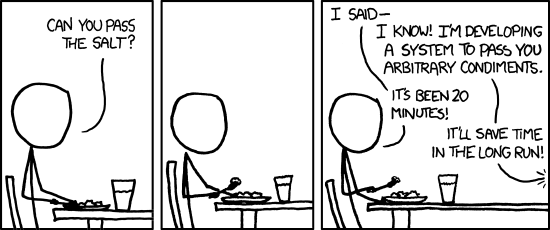
    I find that when someone's taking time to do something right in the present, they're a perfectionist with no ability to prioritize, whereas when someone took time to do something right in the past, they're a master artisan of great foresight.
    The general problem

    Automation requires upfront work

    Let’s just get this out of the way first. There is no silver bullet.

    But having said that, there are development tools available that will help you along the way but setting them up correctly will cost you some time at the beginning. Once you’ve spent that time and get it all into place, you’ll gain it back quickly.

    Next, we’ll briefly cover the tools that I prefer to work with to create this automated workflow. There are plenty of good tools available, I’d be very happy to hear what tools you have found to solve the same, or other, challenges.


    The tools

    Git for Source code control

    Git has quickly become the source control and versioning system of choice for many people. The WordPress development team still relies on Subversion but they are also making all of WordPress core as well as all plugins in the official repository available at Github as well.

    Unit testing

    To maintain code quality we need to use testing and since WordPress is a PHP project, the natural unit testing tool is PHPUnit by Sebastian Bergmann. There are plenty of good tutorials that will help you get started with PHPUnit and WordPress, one of my favorite guides is written by Pippin Williamson.

    Vagrant as development eenvironment

    Vagrant is a piece of software that will help you automate the creation of Virtual Machines right on your development computer. There are many benefits of running your WordPress project inside a Vagrant machine, the most obvious ones are that (1) you can install more or less the same software that you will use in production same version of Apache or nginx, same php version, same mysql version etc. And (2) you can make changes to the development environment without affecting the rest of your computer or any other projects. And (3) it’s super easy to make sure that all developers working on the same project actually has the exact same environment. No more “this works on my machine” conversations.

    Grunt and wp-cli for automation

    Wp-cli is a command line tool for automating installation and configuration of WordPress. It can be used to install a brand new WordPress site as well as to add or remove plugins, update individual settings such as “blogname” etc. We can use it to make sure that our WordPress installs are setup exactly the same in all of our environments (development, staging and production). Using wp-cli can be made even better when we add Grunt. Grunt is a JavaScript based command line tool that makes it easier to automate common tasks, like running a couple of wp-cli commands for instance. Grunt and wp-cli makes it possible to automate pretty much everything when it comes to WordPress installations.

    WP-CFM

    WP-CFM stands for WordPress configuration management. It’s a tool that helps us store a selection of WordPress settings from the database to a file that we keep in git. WP-CFM was built with wp-cli in mind, so by combining them we get a method of managing WordPress settings in the source code control system so that they are easily moved between development, staging and production. There are a few caveats, but there are luckily some workarounds for those.

    Rocketeer for deployment

    There are a few open source deployment systems available. The Ruby system Capistrano might be the most well known right now. For PHP developers there is a system called Rocketeer that does much of the same things but where you can reuse some of your PHP classes (and skills).

    So, will WordPress and DevOps get along?

    There are some distinct challenges when it comes to automating WordPress web development. In the tools list above I’ve outlined the tools I think we need to create a fully automated deployment process that enables us to move our project from development to other environments.

    However, there are a few things that are not covered by any of these tools and it’s the primary reason that WordPress and DevOps sometimes can’t get along at all. It’s the content.

    WordPress makes no distinction between content and content. For instance, your particular menu structure is store as a combination of taxonomies and posts. That’s right. A menu item is a type of post. And the start page of your WordPress site is a post. But the blog posts that are written by the site editors are also posts (naturally), and any images that are uploaded on the live site are also posts.

    Our challenge is that when we deploy our WordPress site from development to production is that some content (menu and start page for example) are kind of part of the core web site you’ve created and you want the deployment process to transfer (and update) it on the live site. But other content is just content and if the deploy process overwrites normal posts we have a catastrophe on our hands.

    WordPress has a hard time seeing the difference and that’s going to be the primary challenge when we want WordPress and DevOps to play along nicely.


    Nitty gritty

    Every item in the tool list, how to use them and how they fit into our process is a large enough topic for a 2-4 blog posts each. I’m not covering them in detail in this post. But as it happens, this post is only the first in a series of blog posts on these topics.

    The next post will cover how to set up a good development environment using Vagrant and Git and after that we’ll look into automation with Grunt and wp-cli.

    So stay tuned to this blog.

    WordPress DevOps – The book

    I’ve written an ebook on this subject. Released in September this year on Leanpub.com. Expect a 100+ tightly written pages where we walk through the creation of the skeleton of a WordPress based Saas application, connected to Stripe and Paypal with a working deployment process that takes content into account. Just add your billion dollar idea. Jump on over to Leanpub to get your copy.

    WordPress DevOps - Strategies for developing and deploying with WordPress
    WordPress DevOps – Strategies for developing and deploying with WordPress


    [wysija_form id=”3″]